
- The Two-Stage Bottleneck Test: Is It the Cell Tower or Your Indoor Wi-Fi?
- Stopping Silent 4G Fallback: Network Mode Selection and Band Locking
- How to Lock Your Router onto High-Capacity 5G Channels
- Why Speeds Vary Room-to-Room: Fixing Band Steering and Apartment Wi-Fi Congestion
- Four Indoor Wi-Fi Adjustments to Unlock Full 5G Speeds Across Rooms
- Baseband Firmware Updates, MTU Packet Sizing, and DNS Tuning
- External TS-9 and SMA Antennas: When They Help and When They Hurt
- Knowing When Software Tweaks Cannot Fix a Saturated Tower
- Frequently Asked Questions About Boosting Home 5G Router Speed
- Why does my 5G smartphone get much faster speeds than my 5G home router on the same operator?
- Does changing the DNS server on a 5G router increase download megabits per second?
- Why is my 5G download speed over 250 Mbps while my upload speed is stuck under 5 Mbps?
- Will performing a factory reset on my 5G router fix slow evening speeds?
- How many smart home devices can connect to a 5G CPE before Wi-Fi performance degrades?
To improve a slow home 5G signal and boost speeds before paying for a plan upgrade or switching providers, you must first isolate whether the bottleneck sits on the cellular radio link (WAN) or your indoor wireless network (WLAN) by running a wired Gigabit Ethernet speed test, and then apply five targeted engineering fixes: lock the router onto 5G NR mode to prevent silent fallback to congested 4G LTE bands, split the merged 2.4 GHz and 5 GHz Wi-Fi bands into separate SSIDs, switch to an uncrowded upper 5 GHz channel (channels 149–161) at 80 MHz width, update the router's baseband firmware, and optimize MTU packet size and DNS resolvers.
Many subscribers across Saudi Arabia encounter a frustrating paradox: their home 5G router delivers 300+ Mbps in the living room near the unit, yet speeds plunge below 20 Mbps in a bedroom just ten meters away—or throughput collapses every evening even though the router has not moved a single millimeter. Understanding the boundary between cellular radio scheduling and local Wi-Fi propagation enables you to fix the exact bottleneck without unnecessary subscription changes.

The Two-Stage Bottleneck Test: Is It the Cell Tower or Your Indoor Wi-Fi?
Every home 5G CPE actually contains two distinct networking subsystems operating in series inside one plastic chassis: a cellular radio modem (WAN) that communicates with your operator's outdoor base station (STC, Mobily, Zain, or Salam), and a local wireless router (WLAN) that broadcasts Wi-Fi across your rooms. A failure in either subsystem looks identical on your smartphone screen—buffering video, high gaming ping, and sluggish downloads.
You can pinpoint which subsystem is responsible in less than two minutes using this Two-Stage Isolation Protocol:
- The Baseline Proximity/Wired Check: Connect a laptop directly to the router's Gigabit Ethernet (LAN) port, or stand exactly one meter away from the router with your phone connected to the 5 GHz Wi-Fi band, and run a speed test.
- The Distant-Room Check: Walk into the bedroom, study, or majlis where speeds feel sluggish, and run the exact same test on your phone.
- Engineering Interpretation: If you achieve 310 Mbps standing next to the router (or over Ethernet) but only 18 Mbps in the back bedroom, your cellular 5G signal from the tower is completely healthy—the speed drop is 100% caused by indoor Wi-Fi attenuation and band steering. Conversely, if speeds are slow even over a wired Ethernet cable plugged straight into the router (for example, 15 to 30 Mbps), the bottleneck lies on the cellular radio link between your router and the operator's tower.
Before spending hours tweaking radio parameters, you can also check whether stronger network infrastructure has recently gone live at your street address via our home broadband coverage checker.
Stopping Silent 4G Fallback: Network Mode Selection and Band Locking
When your speed drops drastically right next to the router (or over Ethernet) while the front LED bars still look full, the most common culprit is silent Inter-RAT Fallback (4G LTE Fallback). Across Saudi Arabia, 5G networks operate either in Non-Standalone (5G NSA) mode—which pairs a 4G LTE anchor carrier with a high-capacity 5G NR (Band n78) data carrier—or in Standalone (5G SA) mode defined by the International Telecommunication Union (ITU).
When left in default Auto (5G/4G/3G) mode, the router's baseband algorithm constantly evaluates signal thresholds. If evening interference or a passing heavy vehicle causes a momentary dip in the 3.5 GHz (n78) signal, the router silently drops the 100 MHz-wide 5G carrier and camps exclusively on a narrow 4G LTE band such as:
- LTE Band 1 (2100 MHz) or Band 3 (1800 MHz): Standard 15 MHz to 20 MHz FDD channels heavily shared with thousands of mobile smartphones driving past your neighborhood.
- LTE Band 28 (700 MHz) or Band 8 (900 MHz): Low-frequency coverage bands that penetrate concrete walls effortlessly—lighting up all signal bars on your router—but carry only 10 MHz of spectrum, capping real-world speeds at 10 to 30 Mbps.
How to Lock Your Router onto High-Capacity 5G Channels
To stop your CPE from abandoning the fast 5G n78 carrier at the slightest fluctuation:
- Log into your router's web administration interface and navigate to Network Settings > Mobile Network Searching / Mode.
- Change the preferred network mode from Automatic to 5G Preferred or 5G SA Only (if your operator's local tower supports Standalone 5G on your SIM profile). If your tower uses 5G NSA, ensure that EN-DC (E-UTRAN New Radio Dual Connectivity) remains active.
- On router models that expose manual Band Selection (Band Locking), deselect congested low-band anchors like Band 28 (700 MHz) if your location receives a stable mid-band anchor on Band 3 (1800 MHz) or Band 1 (2100 MHz) paired with 5G n78 (3500 MHz).
- Monitor the Physical Cell ID (PCI) in your router's diagnostic menu. If the PCI number switches back and forth every 60 seconds between two different numbers (a condition called Ping-Pong Handover), slightly shielding one side of the router or rotating it 45 degrees will stabilize the lock on a single sector and eliminate sudden 2-second freezes.
| Observed User Symptom | Underlying Technical Root Cause | Direct Corrective Action in Router Settings |
|---|---|---|
| 300+ Mbps next to router, under 25 Mbps in adjacent rooms | Phone silently pushed onto slow 2.4 GHz Wi-Fi band by Smart Connect | Disable Band Steering; create separate 2.4 GHz and 5 GHz SSIDs |
| Speed drops from 280 Mbps to 20 Mbps over Ethernet with full LED bars | Router dropped 5G Band n78 and camped on low-band 4G LTE (B28/B3) | Set Network Mode to 5G Preferred/SA and lock onto mid-band anchor + n78 |
| High speed-test numbers, but websites hang and apps load slowly | GTP tunnel packet fragmentation or sluggish ISP DNS resolution | Lower cellular APN MTU size to 1428 or 1440 bytes; set custom DNS |
| Wi-Fi stutters every evening in a multi-story apartment building | Co-channel interference on default 5 GHz channels (36–48) from neighbors | Manually set 5 GHz channel to upper band (149–161) at 80 MHz width |
| Gradual slowdown and high ping after weeks of continuous operation | Exhausted NAT session table or baseband memory leak | Enable automated weekly scheduled reboot at 4:00 AM and update firmware |
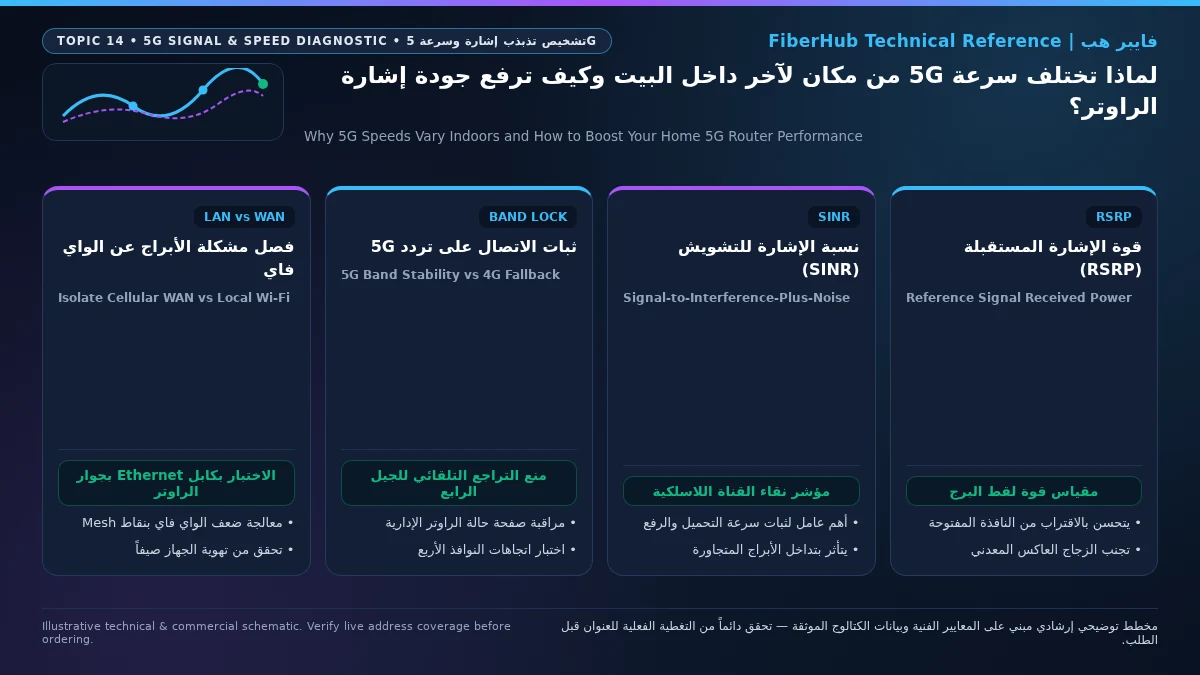
Why Speeds Vary Room-to-Room: Fixing Band Steering and Apartment Wi-Fi Congestion
When your Two-Stage Isolation Test confirms fast speeds next to the router but poor speeds in other rooms, the culprit is almost always Band Steering (Smart Connect)—a default feature on operator-supplied routers that merges the 2.4 GHz and 5 GHz wireless networks under a single Wi-Fi name (SSID).
In theory, Smart Connect is supposed to seamlessly hand your devices between the ultra-fast 5 GHz band (which supports 300 to 800 Mbps but attenuates rapidly through concrete walls) and the long-range 2.4 GHz band (which penetrates walls easily but tops out around 30 to 50 Mbps due to narrow channels and heavy Bluetooth/microwave interference). In reality, as soon as you walk from the hallway into a bedroom and the 5 GHz signal drops below -70 dBm, your smartphone switches down to the 2.4 GHz band—and stubbornly stays stuck on 2.4 GHz even after you walk back toward the living room.
Check 5G and fiber availability in your district
Home 5G performance depends on local sector coverage and window line-of-sight. Check your address options before committing.
Four Indoor Wi-Fi Adjustments to Unlock Full 5G Speeds Across Rooms
- Split the 2.4 GHz and 5 GHz SSIDs: Open your router's Wi-Fi settings and turn off Prioritize 5 GHz / Smart Connect / Band Steering. Name your 5 GHz network clearly (e.g., MyHome-5GHz-Fast) and your 2.4 GHz network separately (e.g., MyHome-2.4GHz-Smart). Connect all smartphones, laptops, Apple TVs, and gaming consoles exclusively to the 5 GHz SSID, while relegating smart plugs, robot vacuums, and distant security cameras to the 2.4 GHz SSID.
- Verify 80 MHz Channel Width: In advanced 5 GHz Wi-Fi settings, confirm that Channel Bandwidth is set to 20/40/80 MHz (or 80 MHz dedicated). If the router defaults to 20 MHz or 40 MHz width, it artificially throttles your local Wi-Fi link even when the 5G cell tower is delivering 500 Mbps.
- Escape Congested Apartment Channels: In Saudi apartment buildings, nearly every neighbor's router sits on automatic channel selection, crowding onto the lower 5 GHz channels (Channels 36, 40, 44, and 48). Manually switch your 5 GHz radio to an upper UNII-3 channel—specifically Channel 149, 153, 157, or 161—which permits higher transmission power and experiences far less co-channel contention.
- Keep Wi-Fi 6 (802.11ax) OFDMA Active: Ensure that Wi-Fi 6 mode and OFDMA (Orthogonal Frequency-Division Multiple Access) are enabled so the router can bundle small packets for multiple family devices into a single transmission frame rather than queuing devices one by one.
Baseband Firmware Updates, MTU Packet Sizing, and DNS Tuning
Sometimes both your cellular signal and Wi-Fi link are strong, yet web browsing feels unresponsive, smartphone apps take several seconds to initialize, or video streams stall mid-playback. These symptoms point to protocol-layer friction inside the CPE:
- Baseband and Router Firmware Updates: Telecom operators periodically push over-the-air (OTA) firmware updates that refine 5G carrier aggregation tables, fix modem crashes under heavy UDP load, and patch security vulnerabilities. Check the System Update menu in your router dashboard monthly.
- Cellular MTU Size Optimization (1428 to 1440 Bytes): Unlike wired fiber connections that use a standard 1500-byte or 1492-byte Maximum Transmission Unit (MTU), cellular 5G traffic is encapsulated inside GPRS Tunneling Protocol (GTP-U) headers and often passes through IPv6-to-IPv4 translation layers (464XLAT). If your router's LAN/APN MTU is left at 1500 bytes, large packets exceed the cellular tunnel limit and must be split into smaller fragments (Packet Fragmentation), increasing latency and causing occasional TLS handshake timeouts. Setting the APN MTU manually to 1428 or 1440 bytes eliminates tunnel fragmentation.
- Custom DNS and Weekly Scheduled Reboots: Consumer 5G routers have modest RAM allocations for tracking Network Address Translation (NAT) states. After weeks of continuous uptime with dozens of mobile devices opening thousands of UDP/TCP connections, the NAT table fills up. Enabling a Scheduled Reboot once a week at 4:30 AM clears stale NAT states and negotiates a fresh PDP/PDU session with the cell tower.
External TS-9 and SMA Antennas: When They Help and When They Hurt
Several 5G CPE models distributed in Saudi Arabia feature two small rear ports concealed behind a snap-off cover (typically TS-9 or SMA connectors) for external antennas. However, plugging a cheap, generic magnetic-base antenna bought online into those ports often reduces your 5G speed instead of boosting it for two engineering reasons:
- First, the internal 4x4 or 8x8 MIMO antenna array built into modern 5G routers is already precision-tuned with 7 dBi to 9 dBi of gain, whereas inexpensive omnidirectional whip antennas rarely deliver more than 2 dBi to 3 dBi.
- Second, thin coaxial cables suffer massive signal loss (attenuation) at 3500 MHz. Standard RG-58 or thin RG-174 cable loses nearly 1 dB per meter at 3.5 GHz—meaning a 10-meter cable run wipes out 10 dB (90%) of the signal before it ever reaches the router!
Only use external antenna ports if you are installing a genuine, high-gain directional MIMO panel or parabolic antenna engineered specifically for the 3300–3800 MHz (n78) band, fed through ultra-low-loss coaxial cables (such as LMR-400) kept under 5 meters in length. Otherwise, an integrated Outdoor 5G CPE powered over a single PoE Ethernet cable is vastly superior because the modem sits right behind the outdoor antenna with zero coaxial cable loss.
Knowing When Software Tweaks Cannot Fix a Saturated Tower
Honest engineering requires recognizing the physical limits of radio optimization. No router setting can manufacture bandwidth out of a congested cell tower. You have reached the physical ceiling of your current operator's 5G network in two specific scenarios:
- Severe Evening Sector Congestion: Your signal metrics are pristine (RSRP -74 dBm, SINR +22 dB) and you get 380 Mbps at 9:00 AM, yet speeds crash below 10 Mbps every single night between 8:30 PM and midnight over a wired Ethernet cable. This proves the local tower sector is oversubscribed by neighborhood households.
- Total Absence of 5G n78 Coverage: Your building sits in a deep coverage hole where the operator's nearest 3.5 GHz sector is blocked by high-rise towers, leaving only slow low-band 4G.
When local tower congestion is the culprit, your only effective remedies are switching to a competing operator with an uncongested tower serving your street—guided by regional performance reports from the Communications, Space and Technology Commission (CST)—or transitioning to a dedicated wired fiber-to-the-home (FTTH) line. You can explore verified 5G home broadband plans, check dedicated FTTH fiber packages, or compare all available options side-by-side on our broadband comparison page:
| Operator | Verified Catalog Plan | Technology Type | Speed (Download / Upload) | Monthly Price (Incl. 15% VAT) |
|---|---|---|---|---|
| Mobily | Mobily Home 5G 200 Mbps | 5G Home Wireless | 200 / 50 Mbps | 287.5 SAR (12-Month Commitment) |
| Salam | Salam HomeFi Max 5G | 5G Home Wireless | 500 / 100 Mbps | 345 SAR (12-Month Commitment) |
| Zain | Zain 5G+ Home Prime (300 Mbps) | 5G Home Wireless | 300 / 60 Mbps | 345 SAR (18-Month Commitment) |
| STC | STC Baity Fiber Basic (300 Mbps) | FTTH Fiber Optic | 300 / 100 Mbps | 287.5 SAR (12-Month Commitment) |
| Salam | Salam Fiber 300 | FTTH Fiber Optic | 300 / 100 Mbps | 287.5 SAR (12-Month Commitment) |
| Mobily | Mobily Fiber Postpaid 300 | FTTH Fiber Optic | 300 / 100 Mbps | 345 SAR (12-Month Commitment) |
Frequently Asked Questions About Boosting Home 5G Router Speed
Compare home 5G plans, router terms, and billing
Review prepaid vs postpaid 5G tiers, CPE router conditions, and operator contract terms side by side.
Why does my 5G smartphone get much faster speeds than my 5G home router on the same operator?
This usually happens for one of two reasons: either your smartphone is testing cellular speeds directly on its modem while your phone's test of the router is being bottlenecked by the router's 2.4 GHz Wi-Fi band, or your smartphone's newer flagship modem is aggregating a 5G Standalone (SA) carrier combination while the home router has fallen back to a congested 4G LTE anchor band.
Does changing the DNS server on a 5G router increase download megabits per second?
Switching your router's DNS to fast resolvers like Cloudflare (1.1.1.1) or Google (8.8.8.8) does not increase raw file download throughput in Mbps, but it significantly reduces domain lookup latency (from 60+ ms down to under 15 ms), making initial webpage loads, mobile app launches, and video stream startups feel much snappier.
Why is my 5G download speed over 250 Mbps while my upload speed is stuck under 5 Mbps?
Mid-band 5G (Band n78) uses Time Division Duplexing (TDD), where the operator allocates roughly 75% to 80% of radio time slots to downloading and only 20% to 25% to uploading. Additionally, the cell tower transmits down to your home with high-wattage amplifiers, whereas your router transmits back up to the tower using roughly 0.2 watts (23 dBm). Any wall or coated glass in the way weakens your router's outgoing uplink signal far more severely than the incoming downlink.
Will performing a factory reset on my 5G router fix slow evening speeds?
A factory reset only resolves speed issues caused by misconfigured manual network settings, corrupted APN profiles, or firmware state glitches after an update. If your speed drop occurs every evening between 8:00 PM and midnight due to neighborhood cell tower congestion, a factory reset will not change the radio capacity of the tower.
How many smart home devices can connect to a 5G CPE before Wi-Fi performance degrades?
Although Wi-Fi 6 routers advertise theoretical support for 64 to 128 connected clients, the embedded CPU and NAT table on standard operator 5G CPEs begin showing latency spikes once more than 20 to 25 devices are actively transferring data simultaneously. For smart homes with 30+ connected devices, offloading Wi-Fi management to an external Mesh router connected via Ethernet keeps the connection responsive.
Need fast home internet without waiting for trenching?
Check your address first to confirm whether fiber is ready or compare eligible home 5G plans for your location.
Editorial Transparency & Neutrality Notice:
This guide is provided for comparison and decision support. It does not constitute final address coverage confirmation, binding operator pricing, or regulatory accreditation. Always verify final plan terms and box readiness before completing your subscription request.