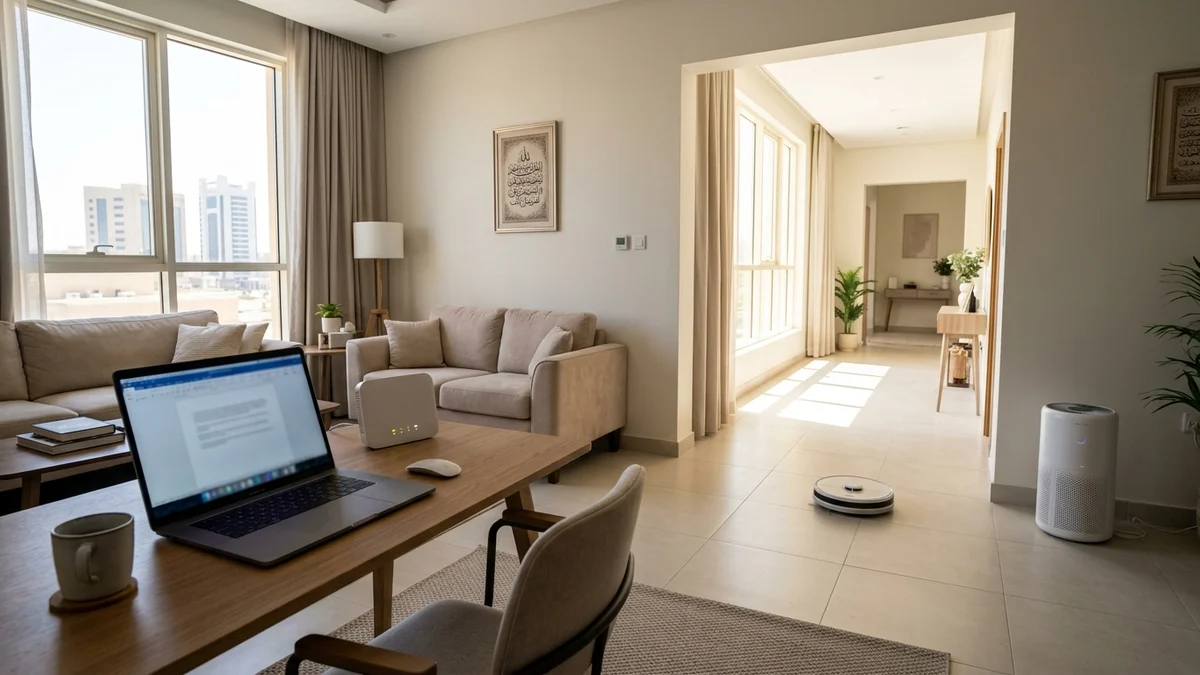
- Radio Frequency Physics and Signal Attenuation Across Saudi Concrete Walls
- Spectrum Anatomy: Why 2.4 GHz Suffers From Congestion While 5 GHz Thrives on Wide Channels
- Device Assignment Matrix: Mapping Every Household Client to the Right Band
- Band Steering (Unified SSID) vs Splitting SSIDs: Which Configuration Works Best?
- Step-by-Step Router Tuning Guide for Optimal 2.4 GHz and 5 GHz Performance
- Frequently Asked Questions About 2.4 GHz and 5 GHz Wi-Fi Bands
- Why does the 5 GHz Wi-Fi network not show up on some of my devices?
- Does turning off the 2.4 GHz band make the 5 GHz band faster?
- Why do I only get 50 to 80 Mbps on 2.4 GHz when I subscribe to a 500 Mbps fiber plan?
- Is 5 GHz Wi-Fi the same thing as 5G mobile internet?
Choosing which Wi-Fi frequency band to connect each device to in your home comes down to three physical variables: distance from the router, the number of reinforced concrete walls in between, and how much real-time bandwidth the application demands. Devices located in the same room as your fiber gateway or separated by at most one interior partition that require high throughput and low latency—such as 4K/8K smart TVs, PlayStation 5 and Xbox Series X consoles, work laptops running video conferences, and smartphones streaming high-bitrate media—should always connect to the 5 GHz band to unlock full fiber speeds. Conversely, devices positioned behind two or more thick concrete walls, installed in an outdoor courtyard or rooftop annex (mulhaq), or operating as low-bandwidth smart home appliances—including smart air conditioners, robot vacuums, smart plugs, wireless printers, and perimeter security sensors—belong on the 2.4 GHz band, where longer electromagnetic wavelengths penetrate dense building materials and maintain a stable link over far greater distances.
Across Saudi Arabia, many Fiber-to-the-Home (FTTH) subscribers assume their optical line is underperforming when speeds drop below 60 Mbps in a bedroom or video calls freeze in the family living area. In reality, the fiber circuit terminating at the Optical Network Terminal (ONT) is almost always delivering full provisioned capacity; the bottleneck occurs inside the home when a high-speed laptop or phone becomes trapped on a congested 2.4 GHz channel, or when a distant client struggles to hold onto an attenuated 5 GHz signal at the edge of its physical coverage footprint. This engineering and practical guide breaks down radio frequency physics under IEEE 802.11 standards and Wi-Fi Alliance specifications, quantifies signal loss across Saudi residential construction materials, and provides a clear methodology for configuring Band Steering, splitting SSIDs, and assigning household devices so you extract every megabit from the plans listed on our Saudi fiber broadband comparison hub.
Radio Frequency Physics and Signal Attenuation Across Saudi Concrete Walls
Wireless local area networks obey fundamental electromagnetic propagation laws, specifically the Free-Space Path Loss (FSPL) equation and material absorption coefficients. Wavelength ($\lambda$) and frequency ($f$) are inversely proportional ($\lambda = c / f$, where $c$ is the speed of light). As frequency increases, the physical wavelength shrinks, changing how the radio wave interacts with solid obstacles and how much data it can carry per second:
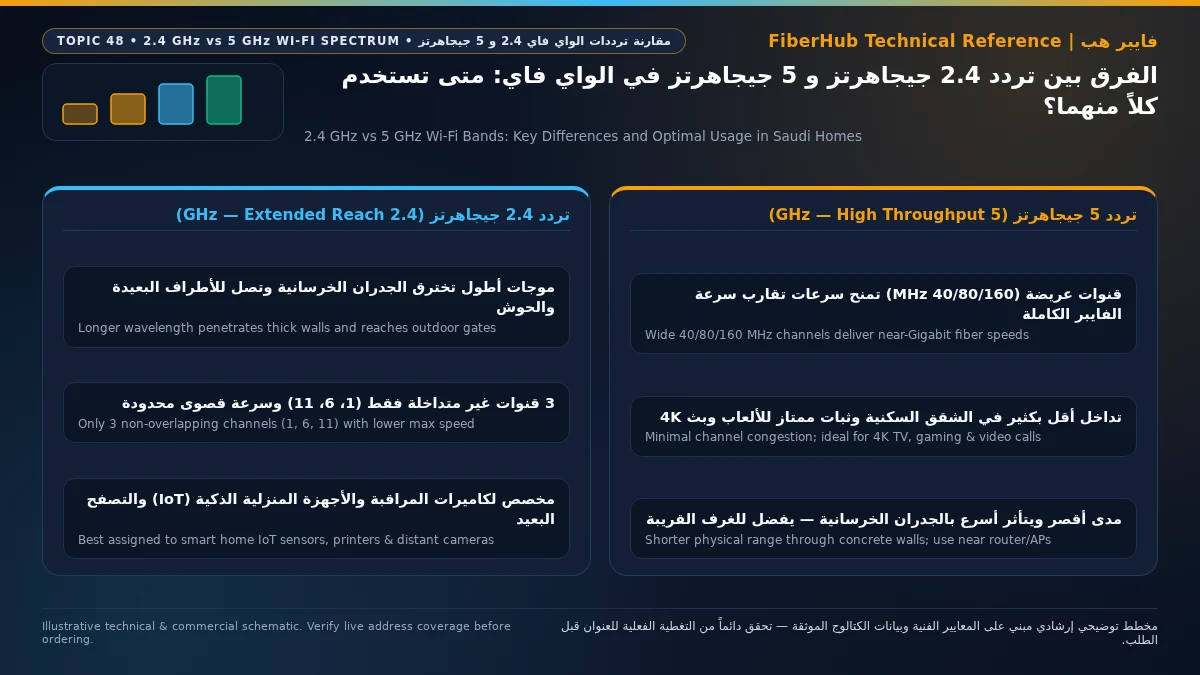
- The Physics of the 2.4 GHz Band: Operating around 2,400 MHz, a 2.4 GHz radio wave has a physical wavelength of approximately 12.5 centimeters. Because this wavelength is relatively long, the signal bends (diffracts) more gracefully around door frames, furniture, and structural corners, and experiences significantly lower energy absorption when passing through dense masonry, cement blocks, and steel-reinforced concrete. This gives 2.4 GHz a broad horizontal and vertical coverage footprint across multi-room apartments and two-story villas, though its narrow total spectrum limits maximum data transfer rates.
- The Physics of the 5 GHz Band: Operating between 5,150 MHz and 5,850 MHz, a 5 GHz wave has a much shorter wavelength of roughly 5.2 to 5.8 centimeters. Higher oscillation frequency and vast contiguous spectrum allow routers to pack dense modulation schemes (such as 256-QAM on Wi-Fi 5 and 1024-QAM on Wi-Fi 6) across wide channels, effortlessly delivering hundreds of megabits per second over the air. However, short wavelengths reflect off dense surfaces and lose energy rapidly when traversing solid walls, thermal-insulated glass, or floor slabs, restricting optimal 5 GHz performance to closer proximity.
- Signal-to-Noise Ratio (SNR) and Modulation Scaling: Modern Wi-Fi transceivers dynamically adjust their Modulation and Coding Scheme (MCS index) based on the Signal-to-Noise Ratio—the gap between received signal strength (RSSI) and background radio noise. Even when a 2.4 GHz signal displays full bars on your phone screen, high noise from neighboring routers and Bluetooth transmitters depresses SNR, forcing the radio down to slower modulation rates. On 5 GHz, lower neighborhood noise allows nearby devices to sustain peak MCS rates and ultra-low latency.

Residential architecture across Saudi cities—whether modern villas in North Riyadh and Jeddah or multi-story apartment buildings in Dammam, Khobar, and Madinah—relies heavily on poured reinforced concrete columns, steel rebar meshes, hollow cement blocks, ribbed Hordi concrete floor slabs, and thermally insulated double-glazed exterior windows (Low-E glass). Wi-Fi signal strength is measured in decibels relative to one milliwatt (dBm). Readings between -30 dBm and -65 dBm represent strong, high-throughput signal levels, whereas connections degrading past -75 dBm suffer severe modulation step-downs and packet retransmissions. The table below illustrates typical single-obstacle attenuation across common building barriers found in Saudi homes:
| Architectural Barrier in a Saudi Home | Typical 2.4 GHz Loss | Typical 5 GHz Loss | Real-World Impact on Wireless Performance |
|---|---|---|---|
| Interior Gypsum Drywall Partition | 3 to 4 dB | 5 to 7 dB | Minimal impact; both bands maintain near-maximum link speeds across adjacent rooms |
| Solid Wood Interior / Majlis Door | 4 to 6 dB | 8 to 11 dB | Noticeable dip on 5 GHz when heavy doors are closed; keep the ONT out of closed cabinets |
| Plastered Cement Block Wall (15–20 cm) | 6 to 9 dB | 12 to 16 dB | One wall preserves fast 5 GHz speeds; two consecutive walls cut 5 GHz throughput by over 60% |
| Double-Glazed Thermal Window (Low-E Coating) | 8 to 12 dB | 18 to 24 dB | Metallic heat-reflective film strongly reflects 5 GHz waves, blocking signal to patios and annexes |
| Reinforced Concrete Shear Wall / Hordi Slab | 15 to 20 dB | 25 to 32 dB | 5 GHz barely penetrates between villa floors; requires wired Ethernet backhaul or FTTR/Mesh nodes |
| Home Elevator Shaft or Metal Distribution Box | 22 to 30 dB | 35+ dB (Blocked) | Creates an immediate RF shadow zone behind the metallic enclosure for both bands |
Consider a practical example: if your router transmits at +20 dBm and your smartphone is located two bedrooms away behind two plastered cement block walls, free-space distance loss plus wall attenuation will bring the 2.4 GHz signal to roughly -64 dBm (solid, dependable connectivity), while the 5 GHz signal plummets to -81 dBm—a threshold where video streams buffer constantly. This also explains why leaving your ISP fiber gateway locked inside a recessed metal weak-current wall cabinet near the apartment entrance cripples 5 GHz coverage before the wave ever reaches the hallway.
Spectrum Anatomy: Why 2.4 GHz Suffers From Congestion While 5 GHz Thrives on Wide Channels
Beyond wall penetration, the second decisive difference between the two frequencies lies in total available radio spectrum, channel width, and vulnerability to neighborhood interference:
1. The 2.4 GHz Bottleneck: Overlapping Channels (1, 6, 11) and ISM Interference The 2.4 GHz band operates inside a narrow unlicensed frequency slice spanning roughly 83.5 MHz (from 2,400 to 2,483.5 MHz). Although router configuration menus list 11 or 13 selectable channels, each channel center is spaced only 5 MHz apart, whereas a single standard Wi-Fi carrier requires 20 MHz of spectral width. Consequently, adjacent channel numbers physically overlap one another. Across the entire 2.4 GHz band, there are only three non-overlapping 20 MHz channels: Channel 1, Channel 6, and Channel 11. In high-density Saudi apartment complexes, dozens of neighboring routers compete for airtime across these exact three channels, creating three distinct performance hazards:
- Co-Channel Interference (CCI): Because Wi-Fi uses a polite "listen-before-talk" protocol (CSMA/CA), every router and client device sharing Channel 6 within earshot must take turns transmitting. During peak evening hours, your device spends more time waiting for clear airtime than actually sending packets, driving up latency and jitter.
- Adjacent-Channel Interference (ACI): When poorly configured routers lock onto intermediate channels such as Channel 3, 4, or 8, their sidebands bleed directly into Channels 1, 6, and 11 as raw radio noise, corrupting data frames and forcing constant retransmissions.
- Non-Wi-Fi Household Interference: Because 2.4 GHz is a global Industrial, Scientific, and Medical (ISM) band, it is shared by Bluetooth headsets, wireless game controllers, Zigbee smart home bridges, baby monitors, and kitchen microwave ovens (whose magnetrons radiate powerful interference right around 2.45 GHz whenever running).
2. The 5 GHz Highway: Wide 80/160 MHz Channels and UNII Spectrum By contrast, the 5 GHz band offers over 500 MHz of clean spectrum regulated in Saudi Arabia by the Communications, Space and Technology Commission (CST). Every listed channel in the 5 GHz band is spaced at least 20 MHz apart, providing up to 24 non-overlapping 20 MHz channels. Because spectrum is plentiful, Wi-Fi 5 (IEEE 802.11ac) and Wi-Fi 6 (IEEE 802.11ax) routers combine adjacent channels through Channel Bonding:
- Binding four 20 MHz channels creates an 80 MHz wide channel—the default sweet spot on modern fiber routers—allowing a standard 2x2 MIMO smartphone or laptop to achieve link rates of 866 Mbps to 1,200 Mbps and real-world speed test results of 400 to 750+ Mbps.
- Binding eight channels creates a 160 MHz ultra-wide channel, enabling compatible Wi-Fi 6 clients near the router to approach full gigabit wireless throughput.
- Locally deployed routers divide the 5 GHz spectrum into three operational sub-bands: UNII-1 (Channels 36, 40, 44, 48) for unrestricted indoor use without radar checks; UNII-2A/2C (Channels 52 to 144), which require Dynamic Frequency Selection (DFS) to yield to weather and aviation radars; and UNII-3 (Channels 149, 153, 157, 161, 165), which supports higher indoor transmit power for slightly stronger room-to-room coverage.
Device Assignment Matrix: Mapping Every Household Client to the Right Band
To prevent slow legacy devices from consuming valuable airtime and to guarantee low-latency performance for demanding applications, assign your household electronics according to this engineering matrix:
| Household Device Category | Recommended Band | Engineering Justification | Best Upgrade When Signal Is Weak |
|---|---|---|---|
| Gaming Consoles & PCs (PS5 / Xbox / PC) | 5 GHz (or Wired) | Multiplayer demands sub-15 ms ping stability and zero Bluetooth collisions; patches require full fiber speeds | Run a direct Cat6 Ethernet cable from the ONT |
| 4K/8K Smart TVs & Streamers (Apple TV) | 5 GHz | High-bitrate 4K HDR streams (25–65 Mbps bursts) need wide 80 MHz channels for zero buffering | Place a wired or tri-band Mesh node in the lounge |
| Remote Work Laptops (Zoom / Teams / VPN) | 5 GHz | Bidirectional HD video and VPN tunnels degrade rapidly under 2.4 GHz co-channel contention | Position workspace within one wall of the gateway |
| Smartphones & Tablets in Living Areas | 5 GHz | Wi-Fi 6 phones utilize OFDMA and 80 MHz channels for fast browsing and cloud backups | Enable 802.11k/v assisted roaming across nodes |
| Phones in Outdoor Patios or Annexes | 2.4 GHz | After crossing thermal glass and concrete walls, 2.4 GHz still delivers 20–45 Mbps | Install an outdoor access point or wired Mesh unit |
| Smart ACs, Vacuums & Smart Plugs (IoT) | 2.4 GHz | Embedded IoT chips only include a 2.4 GHz radio to save power and maximize wall penetration | Broadcast a dedicated 2.4 GHz IoT SSID for pairing |
| Outdoor Wi-Fi Cameras & Doorbells | 2.4 GHz | Mounted on exterior boundary walls where longer 12.5 cm wavelengths maintain a 24/7 uplink | Verify RSSI at the bracket stays above -68 dBm |
| Wireless Home Printers & Scanners | 2.4 GHz | Ensures every laptop and phone across the home discovers the printer via mDNS/Bonjour | Assign a static DHCP IP reservation on the router |
If your household includes multiple 4K displays and remote workers, inspect the tiers of verified home broadband plans in Saudi Arabia to ensure your fiber subscription matches your wireless needs.
Check 5G and fiber availability in your district
Home 5G performance depends on local sector coverage and window line-of-sight. Check your address options before committing.
Band Steering (Unified SSID) vs Splitting SSIDs: Which Configuration Works Best?
Most Wi-Fi 6 fiber gateways supplied by STC, Mobily, Salam, and Zain ship with Band Steering (Smart Connect) enabled by default, broadcasting a single network name for both 2.4 GHz and 5 GHz:
- When to Keep Band Steering Enabled: A unified SSID works best in Whole-Home Mesh Wi-Fi or FTTR deployments supporting IEEE 802.11k/v/r fast roaming protocols, allowing phones to transition seamlessly between nodes and bands without dropping calls, as well as in compact open-plan apartments where 5 GHz stays above -70 dBm.
- When to Split 2.4 GHz and 5 GHz Into Separate SSIDs: On a single standalone ONT router behind thick concrete walls, automated steering often causes the "Sticky Client" problem, where phones or TVs drop to 2.4 GHz in a hallway and refuse to roam back to 5 GHz near the router. Splitting into
Home-2.4GandHome-5Glocks living-room TVs and consoles onto gigabit 5 GHz, prevents 2.4 GHz smart appliance pairing timeouts, and eliminates mid-game band-switching lag spikes.
Step-by-Step Router Tuning Guide for Optimal 2.4 GHz and 5 GHz Performance
To optimize your frequency bands and channel selection on standard Huawei OptiXstar, Nokia, or ZTE fiber gateways in Saudi Arabia, follow these configuration steps:
- Access the Gateway Admin Interface: Connect a laptop or phone to your home Wi-Fi, open a browser, and navigate to
192.168.100.1(standard for Huawei ONTs on STC, Mobily, and Salam) or192.168.1.1(common on Nokia and ZTE units). Log in using the administrator credentials printed on the router's bottom label. - Configure Band Steering or Split SSIDs: Open the WLAN / Wi-Fi Basic Settings menu. To separate the bands, uncheck Enable 2.4G/5G Dual-Band Steering (or Smart Connect). Name the 2.4 GHz radio
HomeNetwork-2.4Gand the 5 GHz radioHomeNetwork-5G, ensuring both use WPA2-PSK (AES) or WPA3-Personal security. - Create a Dedicated 2.4 GHz IoT SSID (If Keeping Mesh Unified): If you run a multi-node Mesh system and prefer to keep your main SSID unified, create a secondary virtual SSID enabled exclusively on the 2.4 GHz radio (e.g.,
HomeNetwork-IoT) for smart appliances, cameras, and printers. - Lock in Clean 2.4 GHz Channel Parameters: Set Channel Bandwidth strictly to 20 MHz (never use 40 MHz on 2.4 GHz in residential areas), and select Channel 1, 6, or 11 manually.
- Lock in High-Throughput 5 GHz Channel Parameters: Set Channel Bandwidth to 80 MHz for the best balance of multi-hundred-megabit speed and stability, and manually select a non-DFS channel—specifically Channel 36, 40, 44, or 48 (UNII-1) or Channel 149, 153, or 157 (UNII-3)—so your router never disconnects clients due to false radar detections on middle DFS channels.
Before upgrading your hardware or modifying your subscription, you can verify which optical or wireless infrastructure serves your building using our Saudi address coverage checker and evaluate provider routers side by side on the broadband plan comparison tool.
Frequently Asked Questions About 2.4 GHz and 5 GHz Wi-Fi Bands
Why does the 5 GHz Wi-Fi network not show up on some of my devices?
When a device cannot see your 5 GHz SSID, one of two technical factors is responsible. First, the device may contain a single-band 2.4 GHz-only wireless chip (802.11b/g/n), which is standard in budget laptops, older tablets, wireless printers, and almost all smart home appliances like smart plugs and ACs. Second, if the device is modern and supports dual-band Wi-Fi, your router's 5 GHz radio is likely broadcasting on a middle DFS radar channel (Channels 52–144) or a region-restricted channel that your device's wireless card does not scan. Changing the router's 5 GHz channel manually to Channel 36, 44, or 149 resolves the visibility issue immediately.
Compare home 5G plans, router terms, and billing
Review prepaid vs postpaid 5G tiers, CPE router conditions, and operator contract terms side by side.
Does turning off the 2.4 GHz band make the 5 GHz band faster?
No. Dual-band fiber routers contain separate radio transceivers, power amplifiers, and antenna chains for 2.4 GHz and 5 GHz operating in completely different segments of the electromagnetic spectrum. Disabling the 2.4 GHz radio does not transfer any extra transmit power or bandwidth to the 5 GHz radio; it simply leaves distant rooms without fallback coverage and disconnects 2.4 GHz-only smart home gadgets.
Why do I only get 50 to 80 Mbps on 2.4 GHz when I subscribe to a 500 Mbps fiber plan?
That speed ceiling is dictated by the physical channel constraints of the 2.4 GHz spectrum, not by your ISP's fiber line. On a clean 20 MHz channel, a typical two-antenna (2x2 MIMO) smartphone negotiates a maximum physical link rate of 144 to 287 Mbps. Once you account for half-duplex Wi-Fi protocol overhead (acknowledgment frames, beacon management, and airtime sharing with neighboring networks), real-world TCP throughput naturally tops out between 50 and 90 Mbps. To reach 300 Mbps, 500 Mbps, or gigabit speeds wirelessly, your device must connect to the 5 GHz band over an 80 MHz or 160 MHz channel.
Is 5 GHz Wi-Fi the same thing as 5G mobile internet?
No, they are completely separate technologies despite sharing a similar shorthand label. 5 GHz Wi-Fi refers to the unlicensed 5-gigahertz local radio frequency band used by your home router to connect devices wirelessly across your rooms at no cellular cost. 5G (Fifth Generation Cellular), standardized by 3GPP, refers to the wide-area mobile telecom network operated by carriers like STC, Mobily, Zain, and Salam using SIM cards and outdoor cell towers.
- Official References and Technical Standards: National Frequency Plan and WLAN Spectrum Regulations from the Communications, Space and Technology Commission (CST), wireless specifications from IEEE 802.11ac/ax, and dual-band certification guidelines from the Wi-Fi Alliance.
Need fast home internet without waiting for trenching?
Check your address first to confirm whether fiber is ready or compare eligible home 5G plans for your location.
Editorial Transparency & Neutrality Notice:
This guide is provided for comparison and decision support. It does not constitute final address coverage confirmation, binding operator pricing, or regulatory accreditation. Always verify final plan terms and box readiness before completing your subscription request.