- Calculating Security Camera Upload Bandwidth: 1080p, 2K, and 4K Bitrate Math
- Storage Architecture Trade-Offs: 24/7 Cloud Recording vs. Local PoE NVR Systems
- Smart Home IoT Devices: Why Low-Bandwidth Gadgets Still Slow Down Home Wi-Fi
- Saudi Villa Construction Challenges: Boundary Walls, Courtyards, and Exterior Gate Coverage
- Isolating Your IoT & Camera Network: VLANs, Dedicated 2.4 GHz SSIDs, and QoS Tuning
- Remote Viewing Security & CGNAT in KSA: Why You Must Avoid Port Forwarding
- Matching Your Smart Home & Camera Load to the Right Broadband Tier
- Frequently Asked Questions About Smart Home & Security Camera Bandwidth
- Do security cameras keep recording if my home internet connection goes down?
- How much monthly data do cloud security cameras consume in gigabytes?
- Why won't my new Wi-Fi security camera or smart switch connect to my Wi-Fi 6/7 router?
- Do I need a Static IP address from my ISP to view my home security cameras remotely?
- How do I stop security cameras from causing high ping and lag during online gaming or video calls?
Cloud security cameras and smart home ecosystems depend far more on sustained upload bandwidth (Uplink) and 2.4 GHz wireless airtime stability than on headline download speeds. A single 1080p Full HD cloud camera requires 1.5 to 2.5 Mbps of continuous upload speed using modern H.265 compression (or 3 to 4.5 Mbps on legacy H.264), a 2K (4MP) camera demands 3 to 4.5 Mbps, and a 4K Ultra HD (8MP) camera consumes 6 to 10 Mbps of dedicated uplink per stream. Meanwhile, smart locks, wall switches, motorized blinds, smart thermostats, and environmental sensors use only a few kilobits per second of data, yet they frequently degrade residential networks by flooding the router's NAT session table and saturating 2.4 GHz wireless channels.
Across residential villas and apartments in Saudi Arabia, homeowners frequently subscribe to high-speed broadband tiers expecting effortless camera streaming, only to encounter buffering live views, delayed motion alerts at the front gate, or sudden latency spikes (Bufferbloat) during family video calls and online gaming. The root cause is almost never insufficient download capacity; rather, it is an uncalculated uplink budget, severe 2.4 GHz signal attenuation through reinforced concrete exterior walls, or connecting dozens of chatty Internet of Things (IoT) gadgets directly to the primary household Wi-Fi SSID. This engineering guide details exact camera bitrate calculations, compares local NVR storage against cloud recording, and provides a practical blueprint for isolating and tuning your smart home network.

Calculating Security Camera Upload Bandwidth: 1080p, 2K, and 4K Bitrate Math
Unlike streaming platforms that pull video down from internet servers to your television, security cameras push live video up from your home router to cloud servers or to your smartphone when you inspect your property remotely. Consequently, your internet connection's Upload Speed is the true bottleneck for home surveillance. If your camera array attempts to upload 35 Mbps of video simultaneously over a broadband connection that only delivers 25 Mbps of real-world uplink, outgoing packets queue up in the router buffer, causing dropped frames, failed cloud clips, and severe lag across every computer and console in the house.
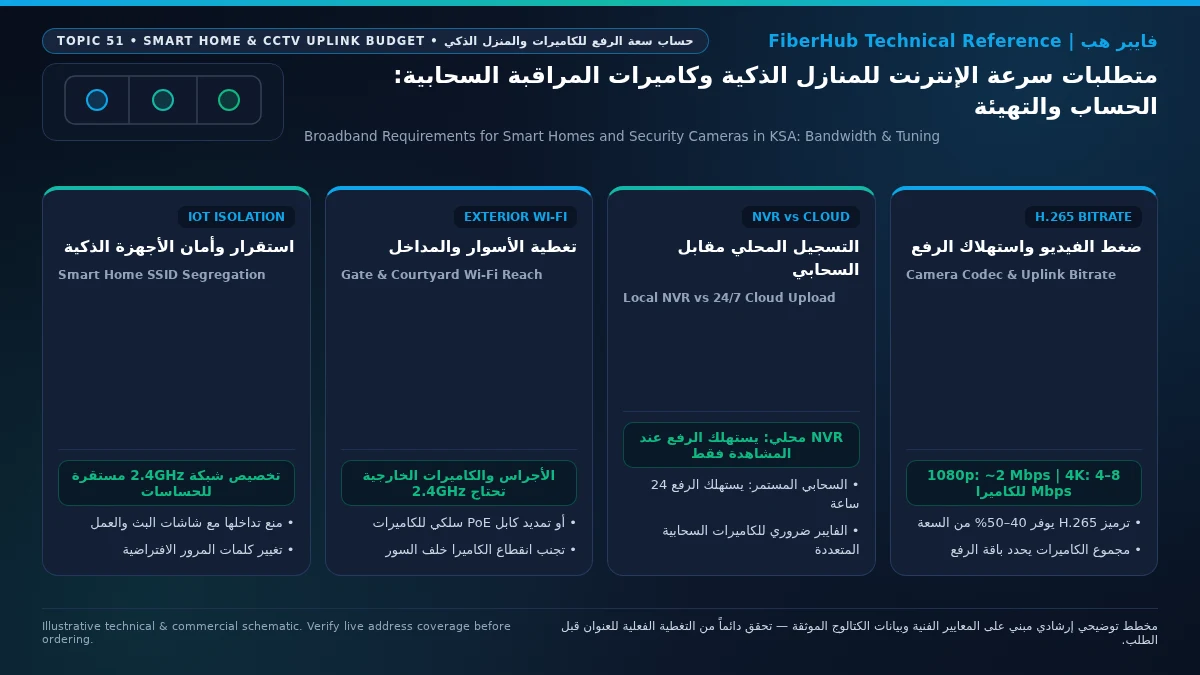
The exact uplink bitrate consumed by each IP camera is governed by four technical parameters: pixel resolution, frame rate (typically 15 to 20 FPS for security surveillance), scene activity and night-vision infrared noise, and the video compression codec (H.264 vs. H.265 / HEVC). High Efficiency Video Coding (H.265) analyzes motion vectors across variable block sizes, reducing required upload bandwidth and storage footprints by 40% to 50% compared to older H.264 encoding at identical visual clarity.
The engineering reference table below details the per-camera uplink bitrate alongside the total recommended upload bandwidth for 4-camera and 8-camera installations, incorporating a mandatory 30% network headroom buffer to prevent uplink saturation:
| Camera Resolution Tier | Single Camera Uplink (H.264 Codec) | Single Camera Uplink (H.265 / HEVC) | Total Uplink for 4 Cameras (H.265 + 30% Headroom) | Total Uplink for 8 Cameras (H.265 + 30% Headroom) | Monthly Data Uploaded per Camera (24/7 Continuous H.265) |
|---|---|---|---|---|---|
| 1080p (Full HD / 2MP) | 3.0 – 4.5 Mbps | 1.5 – 2.5 Mbps | 8 – 13 Mbps | 16 – 26 Mbps | 480 – 810 GB / month |
| 2K (QHD / 4MP) | 5.5 – 8.0 Mbps | 3.0 – 4.5 Mbps | 16 – 24 Mbps | 32 – 47 Mbps | 970 – 1,450 GB / month |
| 4K (Ultra HD / 8MP) | 12.0 – 18.0 Mbps | 6.0 – 10.0 Mbps | 32 – 52 Mbps | 63 – 104 Mbps | 1,940 – 3,240 GB / month |
As the numbers demonstrate, deploying eight 4K cameras configured for continuous cloud upload using legacy H.264 encoding can easily demand over 100 Mbps of sustained upload capacity. Before purchasing high-resolution cloud camera kits, verifying fiber optic broadband availability at your address is essential, because Fiber-to-the-Home (FTTH) delivers deterministic, unthrottled upload speeds and unlimited monthly data allowances that wireless cellular links often struggle to sustain during congested evening hours.
Storage Architecture Trade-Offs: 24/7 Cloud Recording vs. Local PoE NVR Systems
How your surveillance system records video determines whether your internet connection experiences a constant 24-hour load or brief bursts. Residential camera deployments in Saudi Arabia follow one of three architectural models:
- Continuous 24/7 Cloud Recording Cameras: Cameras stream raw video continuously across the internet to remote cloud servers where footage is indexed and stored. While convenient because there is no local recording appliance to maintain inside the home, 24/7 cloud streaming places a relentless Constant Bitrate (CBR) or Variable Bitrate (VBR) load on your internet uplink day and night, consuming terabytes of monthly upstream data. If your external internet line drops, cloud recording halts unless the camera includes onboard fallback flash storage.
- Event-Driven (Motion-Triggered) Cloud Cameras: Most battery-powered and consumer Wi-Fi cameras remain in a low-power idle state until a Passive Infrared (PIR) sensor or onboard AI person/vehicle detection triggers an event. The camera then wakes up and uploads a 15-to-60-second video clip to the cloud. This reduces monthly bandwidth consumption by over 85%, though it still requires low-latency uplink readiness when multiple perimeter cameras trigger simultaneously.
- Local PoE NVR (Network Video Recorder) with Remote Viewing: For Saudi villas with 4 to 16 cameras, a wired Power over Ethernet (PoE) NVR is the gold standard. Each camera connects via Cat6 cabling to a local PoE switch or directly to the NVR inside a secure cabinet. All 24/7 4K recording takes place across your local gigabit LAN onto enterprise hard drives—consuming 0 Mbps of your internet upload speed during normal recording. Your internet connection is only used when you open the mobile app outside the home to view live feeds or play back recorded events.
Professional NVR systems also utilize Dual-Stream Encoding (Main Stream and Sub-Stream). When you open a multi-camera grid view on your smartphone over 5G, the NVR transmits the lightweight Sub-Stream (300–500 kbps per camera) so all feeds load instantaneously. When you tap a single camera to view it full screen, the app switches that feed to the high-definition Main Stream (2K or 4K).
Smart Home IoT Devices: Why Low-Bandwidth Gadgets Still Slow Down Home Wi-Fi
Non-video smart home devices—such as smart wall switches, motorized curtain tracks, split-AC smart controllers, water-leak sensors, robotic vacuums, and smart plugs—transfer less than 5 kilobytes per command. Why, then, do many households experience sluggish Wi-Fi after installing 40 to 70 smart home devices?
The engineering bottleneck is not megabits per second; it is 2.4 GHz airtime contention and router NAT state table exhaustion:
- 2.4 GHz Radio Congestion and Legacy Modulation: Low-cost Wi-Fi IoT microcontrollers inside smart plugs and switches operate exclusively on the 2.4 GHz band using 802.11n rates to minimize power draw and maximize wall penetration. Because wireless is a shared half-duplex medium, only one device on a channel can transmit at any millisecond. When 50 smart devices constantly exchange MQTT keep-alive pings with cloud servers at slow modulation rates, they consume disproportionate airtime, forcing smartphones and laptops to wait.
- Direct Wi-Fi IoT vs. Mesh Protocols (Zigbee, Thread, Matter): Every Wi-Fi smart bulb or switch occupies a DHCP lease, maintains an active Wi-Fi association, and holds open TCP/TLS sessions through your router's Network Address Translation (NAT) engine. Entry-level ISP routers frequently choke when managing more than 40 concurrent wireless clients. Conversely, devices built on Zigbee or Thread (Matter) form a dedicated low-power mesh network and communicate through a single wired bridge—keeping sensors and switches completely off your Wi-Fi radio.
Saudi Villa Construction Challenges: Boundary Walls, Courtyards, and Exterior Gate Coverage
Residential architecture in Saudi Arabia presents physical obstacles for wireless smart home and security devices. Villas are built with thick reinforced concrete columns, dense cement block walls, tiled courtyards (Housh), high perimeter boundary walls, external annexes (Majlis), and heavy steel entrance gates, alongside double-glazed thermal windows coated with metallic Low-E films that reflect radio frequencies.
When a homeowner mounts a wireless Wi-Fi camera on an exterior corner column or installs a smart video intercom on the outer street gate while relying on a single router inside the living room, the radio signal suffers 25 dB to 40 dB of path loss. While a smartphone near the gate might still detect one bar of 2.4 GHz Wi-Fi from the indoor router, the tiny internal antenna inside a doorbell or compact camera cannot push a stable 4 Mbps video stream back through the concrete wall to the router. This asymmetrical link failure causes high packet retransmission rates, battery drain, and "Device Offline" errors during midday heat.
To engineer reliable perimeter connectivity in Saudi homes:
- Prioritize Hardwired Cat6 PoE for Exterior Cameras and Gate Intercoms: Whenever conduits are accessible between the distribution board and the boundary wall, run outdoor-rated Cat6 cabling. A wired PoE connection delivers gigabit Ethernet and continuous DC power, immune to wireless interference and summer ambient temperatures exceeding 48°C.
- Deploy Wired-Backhaul Access Points Near the Perimeter or Annex: If wireless cameras or smart locks are used at the courtyard or street gate, install a mesh node or access point connected via wired Ethernet in the front room overlooking the courtyard or inside the exterior Majlis, or mount an IP65/IP67 weatherproof outdoor access point under the exterior eave.
- Lock the 2.4 GHz Channel Width to 20 MHz: Never use 40 MHz wide channels on 2.4 GHz. Setting access points to 20 MHz channel width on clean non-overlapping channels (1, 6, or 11) concentrates transmission power, improving range at exterior gates while reducing interference from neighboring villas.
Separate indoor Wi-Fi bottlenecks from line capacity issues
If slow speeds or high ping persist over direct Ethernet, check whether fiber or a higher upload tier is available at your address.
Isolating Your IoT & Camera Network: VLANs, Dedicated 2.4 GHz SSIDs, and QoS Tuning
Connecting smart plugs, robotic vacuums, and IP cameras to the same Wi-Fi network used by your work laptop violates residential cybersecurity principles. Consumer IoT devices receive infrequent security patches; if a cloud-connected gadget is compromised, an attacker on a flat network can scan personal computers. Furthermore, modern routers use Band Steering (Smart Connect) to merge 2.4 GHz and 5 GHz into a single SSID—a feature that breaks 2.4 GHz-only cameras and smart switches whenever the router attempts to steer them onto 5 GHz.
Follow this three-layer segmentation strategy to secure and stabilize your smart home:
- Create a Dedicated 2.4 GHz-Only IoT SSID: In your router settings, create a separate wireless network (for example, "Home-IoT-24G") restricted strictly to the 2.4 GHz band with Band Steering disabled. Configure its security mode to WPA2-PSK (AES) rather than WPA3-Only, because older camera Wi-Fi chipsets fail to associate when Protected Management Frames (802.11w / PMF) are enabled.
- Enable Guest/IoT Network Isolation or VLAN Tagging: Enable Client/AP Isolation or assign the IoT SSID to a segregated Virtual LAN (VLAN) so cameras and smart appliances cannot initiate connections to computers on your primary family LAN. If you run a local controller (such as Apple HomeKit, Matter hubs, or Home Assistant), configure firewall rules allowing your primary LAN to initiate connections into the IoT VLAN while blocking unsolicited traffic back into your private network.
- Configure Upstream Quality of Service (QoS) Limits: Enable Smart Queue Management (SQM) or bandwidth limiters on your router to cap the combined upload allocation of your camera IP range at 70% to 75% of your line's verified upload speed, guaranteeing that 25% to 30% of upstream capacity remains reserved for voice calls, video conferencing, and gaming packets.
Remote Viewing Security & CGNAT in KSA: Why You Must Avoid Port Forwarding
Historically, installers recommended configuring Dynamic DNS (DDNS) and opening TCP/UDP ports on the home router (Port Forwarding, such as port 554 for RTSP or port 8000 for camera management) to expose the NVR directly to the internet for remote viewing.
In Saudi Arabia's telecom landscape, traditional port forwarding faces two major barriers: First, residential FTTH and 5G broadband connections across major Saudi ISPs commonly utilize Carrier-Grade NAT (CGNAT / RFC 6598) to conserve IPv4 addresses. Under CGNAT, your home router receives a shared private-range WAN IP rather than a dedicated public IPv4 address, meaning inbound port forwarding requests cannot reach your router directly. Second, exposing NVR web interfaces or RTSP camera ports directly to the public internet invites automated botnet scanning and credential-stuffing attacks. Cybersecurity best practices published by the Communications, Space and Technology Commission (CST) and international IoT security standards advise against exposing device management ports to the public WAN.
Instead, rely on two modern, CGNAT-compatible architectures for remote access:
- Encrypted Outbound P2P Cloud Relay with MFA: Reputable camera and NVR systems establish an encrypted outbound TLS/DTLS connection from inside your home to a relay broker. When you authenticate via the mobile app using Multi-Factor Authentication (2FA/MFA) and a stream-encryption key, the video stream is tunneled securely to your phone without opening any inbound port on your router firewall.
- Self-Hosted Overlay VPN (WireGuard / Tailscale): For maximum privacy where cameras are blocked from accessing the internet via router firewall rules, run an encrypted mesh VPN node (such as Tailscale or WireGuard) on your home gateway or NAS, establishing a direct encrypted peer-to-peer tunnel into your home LAN even behind CGNAT.
Matching Your Smart Home & Camera Load to the Right Broadband Tier
To select the optimal broadband tier for your property, combine your household's everyday consumption with the peak upload bandwidth calculated for your surveillance system:
- Apartments & Compact Homes (2 to 4 Cameras at 1080p/2K + 15–30 Smart Devices): Entry to mid-tier fiber plans with 25 to 50 Mbps of guaranteed upload speed easily handle motion-triggered cloud cameras alongside normal family usage, provided IoT devices are placed on a separate 2.4 GHz SSID. You can inspect verified upload speeds across available fiber optic plans to ensure sufficient upstream capacity.
- Medium to Large Villas (6 to 12 Cameras at 2K/4K + 50+ Smart Home Devices): Target fiber broadband tiers delivering 100 Mbps to 125+ Mbps of upload bandwidth (typically 300 Mbps, 500 Mbps, or 1 Gbps fiber packages), paired with a wired PoE NVR for continuous 24/7 local recording and a wired-backhaul Mesh Wi-Fi system covering indoor floors and the exterior courtyard.
- 5G Home Broadband Deployments in Non-Fiber Zones: If your location relies on Fixed Wireless 5G CPE, remember that cellular uplink speeds fluctuate with cell tower load and signal quality (SINR). On 5G connections, avoid 24/7 continuous cloud uploading for multiple 4K cameras; instead, record locally to an NVR or onboard SD cards and configure cloud uploads strictly for H.265 motion events. To evaluate the best package for your requirements, use our home internet comparison tool or browse all broadband plans and speeds to match your uplink budget.
Frequently Asked Questions About Smart Home & Security Camera Bandwidth
Do security cameras keep recording if my home internet connection goes down?
It depends on where your footage is stored. If you use a wired local PoE NVR (Network Video Recorder) or cameras equipped with internal MicroSD cards configured for local recording, your cameras continue recording 24/7 across your local home network even if external internet service is disconnected—as long as electrical power remains active (connecting the NVR and PoE switch to a UPS battery is recommended). Only remote viewing outside the house and cloud push notifications pause during an outage.
Does your current plan support your device count and upload needs?
Compare download/upload ratios and Wi-Fi 6 or FTTR hardware options across plans available at your address.
How much monthly data do cloud security cameras consume in gigabytes?
A single camera uploading video to the cloud continuously 24/7 at 1080p using H.265 compression consumes 480 GB to 800 GB per month, while a single 4K camera uploading 24/7 consumes 1.9 TB to 3.2 TB per month. When configured for motion-triggered event recording only (20 to 40 clips per day), monthly data usage drops to 15 GB to 45 GB per camera. For multi-camera households, an unlimited fiber connection eliminates monthly data cap concerns.
Why won't my new Wi-Fi security camera or smart switch connect to my Wi-Fi 6/7 router?
In most cases, pairing failures occur because modern routers merge the 2.4 GHz and 5 GHz bands under a single Wi-Fi name (Band Steering / Smart Connect) and enable WPA3 security by default. Because your phone connects on 5 GHz while the smart camera or switch only contains a 2.4 GHz radio chip, pairing fails across bands or the IoT chip rejects WPA3 Protected Management Frames. Creating a dedicated 2.4 GHz-only IoT SSID secured with WPA2-PSK (AES) resolves this immediately.
Do I need a Static IP address from my ISP to view my home security cameras remotely?
No. For residential installations, a Static IP address is not required. Modern NVR appliances and IP cameras use encrypted outbound P2P Cloud Relay (NAT Traversal) or work with personal mesh VPN tools (such as Tailscale or WireGuard), both of which operate reliably behind residential dynamic IPs and ISP CGNAT without requiring inbound port forwarding.
How do I stop security cameras from causing high ping and lag during online gaming or video calls?
Apply three adjustments: first, switch every camera's video encoder setting from H.264 to H.265 (HEVC) to cut upstream bitrate consumption in half. Second, record 24/7 high-resolution streams locally to an NVR or SD card while restricting cloud uploads to motion events or sub-streams. Third, enable Quality of Service (QoS) or Smart Queue Management (SQM) on your router to cap total camera upstream bandwidth at 70% of your line's upload capacity.
Completed tuning and ready for a more stable fiber line?
Check fiber availability at your address and compare low-latency plans for gaming, telework, and multi-floor homes.
Editorial Transparency & Neutrality Notice:
This guide is provided for comparison and decision support. It does not constitute final address coverage confirmation, binding operator pricing, or regulatory accreditation. Always verify final plan terms and box readiness before completing your subscription request.