
- The 3-Point Split Test: How to Isolate Fiber Line Faults from Wi-Fi Bottlenecks
- Suspect #1: The 2.4 GHz Band Lock and "Smart Connect" Band Steering
- Suspect #2: The Mysterious "94 Mbps Ceiling" Caused by a Faulty Ethernet Cable
- Link Rate vs. Real TCP Throughput: Why Wi-Fi Protocol Overhead Takes 40%
- Apartment Channel Congestion, DFS Radar Channels, and Legacy Device Airtime Drag
- When Is the Slowdown Actually an ISP Optical Line Fault?
- When to Fix Your Setup vs. When to Upgrade Your Hardware or Plan
- Frequently Asked Questions About Slow Wi-Fi on Fiber Broadband
- Why does my laptop get 300 Mbps on an Ethernet cable while my phone gets only 50 Mbps right next to the router?
- Why is my internet speed stuck at exactly 94 Mbps on a 300 Mbps or 500 Mbps fiber plan?
- Does leaving a VPN or iCloud Private Relay active on my phone make speed tests look slower?
- Is my Saudi ISP required to guarantee 300 Mbps over Wi-Fi in every bedroom of my house?
- What is a healthy Optical RX Power reading inside my fiber modem's diagnostic page?
If you are wondering why a speed test on your smartphone shows only 45 Mbps or 80 Mbps even though your broadband contract in Saudi Arabia guarantees 300 Mbps or 500 Mbps, the engineering explanation is that your telecom provider delivers the contracted speed over the glass fiber line up to your Optical Network Terminal (ONT), but throughput drops across the final indoor wireless hop due to four common local bottlenecks: your phone getting locked onto the narrow 2.4 GHz frequency band instead of 5 GHz, mandatory Wi-Fi protocol framing overhead consuming 35% to 45% of raw radio link capacity, neighboring apartment channel interference, or a damaged Ethernet patch cable forcing your router port down to a 94 Mbps Fast Ethernet ceiling. You can pinpoint and fix the exact culprit in under fifteen minutes—without paying a single riyal to upgrade your plan—by running a structured three-point split test that isolates external optical line health from indoor wireless constraints.
This gap between contracted fiber speed and smartphone Wi-Fi readings is the single most common support call received by Saudi ISPs. Subscribers naturally expect a 300 Mbps plan to deliver 300 Mbps in every bedroom and on every handheld device, whereas regulatory quality-of-service frameworks established by the Communications, Space and Technology Commission (CST) measure ISP contract compliance at the wired Gigabit Ethernet port of the fiber modem—because indoor radio wave propagation is governed by reinforced concrete walls, channel physics, and client antenna design.
The 3-Point Split Test: How to Isolate Fiber Line Faults from Wi-Fi Bottlenecks
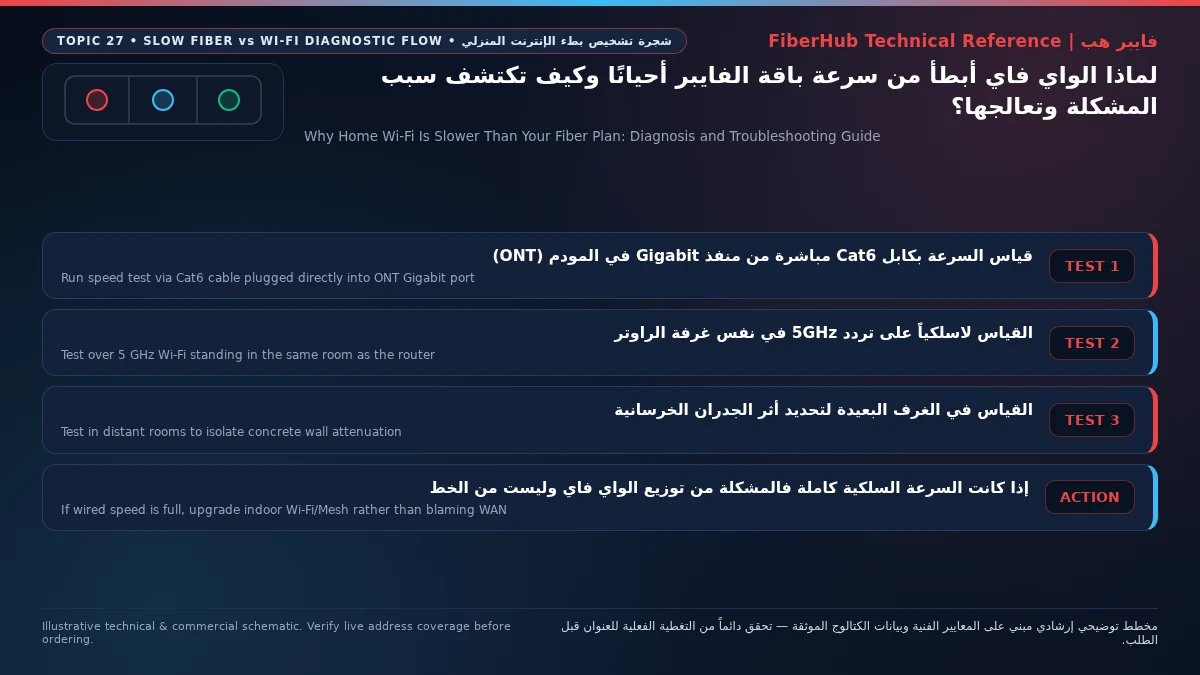
Before calling technical support or buying extra hardware, pause all active downloads in your house and run three sequential speed tests using the official CST Meqyas platform to localize where the megabits are disappearing:
- Checkpoint 1 (Direct Wired Gigabit Test at the ONT): Plug a laptop or desktop PC directly into the
LAN 1port of your main fiber modem using a certified Cat6 Ethernet cable, and disable Wi-Fi on the computer. If the wired test reaches 90% to 100% of your plan speed (for example, 285–305 Mbps on a 300 Mbps tier), your external fiber line and ISP profile are 100% healthy, proving the bottleneck is strictly inside your Wi-Fi configuration or cabling. - Checkpoint 2 (Same-Room Wi-Fi Test at 2 Meters): Stand two meters in front of the router with clear line of sight and run the test on your smartphone. If the wired test hit 300 Mbps but your phone standing right next to the router only gets 50–70 Mbps, your router's radio settings (band steering or channel width) are throttling your wireless link.
- Checkpoint 3 (Distant Room / Majlis Wi-Fi Test): If your phone achieves 270–300 Mbps standing next to the router, but drops to 18 Mbps in the master bedroom behind two concrete walls, the router settings are fine and you are dealing with physical RF attenuation.

Use the diagnostic matrix below to interpret your three readings and apply the exact fix:
| Wired ONT Port Reading | Same-Room Wi-Fi (2m) | Distant Room Wi-Fi | Root Engineering Diagnosis | Immediate Corrective Action |
|---|---|---|---|---|
| 295 Mbps | 48 Mbps | 25 Mbps | Phone trapped on slow 2.4 GHz band due to Band Steering | Split 2.4 GHz and 5 GHz SSIDs; connect phone to -5G network |
| 93 Mbps (Hard Cap) | 92 Mbps (on AP/Mesh) | 60 Mbps | Damaged 8-pin cable or 100BASE-TX Fast Ethernet port cap | Replace patch cord or wall jack with a verified 8-wire Cat6 cable |
| 298 Mbps | 280 Mbps | 18 Mbps | Concrete wall attenuation blocking 5 GHz radio waves | Remove router from metal wall cabinet or add wired access point |
| 295 Mbps | 135 Mbps | 40 Mbps | 5 GHz channel width restricted to 20/40 MHz or congestion | Set 5 GHz channel width to 80 MHz on clean channel (36–48) |
| 35 Mbps | 32 Mbps | 15 Mbps | Weak optical laser power (dirty SC/APC) or ISP profile cap | Check ONT Optical RX Power (-15 to -24 dBm) & open ISP ticket |
Suspect #1: The 2.4 GHz Band Lock and "Smart Connect" Band Steering
Most Wi-Fi 6 routers supplied with Saudi fiber broadband packages ship with a default feature called Band Steering (Smart Connect / Dual-Band Single SSID) enabled out of the box. This merges the 2.4 GHz and 5 GHz radios under a single Wi-Fi network name and password, intending to steer your phone automatically to the best frequency. In Saudi homes built with thick reinforced concrete columns and masonry partitions, however, Band Steering frequently backfires.
Because 2.4 GHz radio waves have a longer wavelength and penetrate concrete with less signal loss than 5 GHz waves, your smartphone detects a stronger dBm signal on 2.4 GHz the moment you walk into the hallway, switches down to the 2.4 GHz band, and refuses to switch back to 5 GHz even when you return to the living room. The catch is that the 2.4 GHz spectrum is narrow, heavily congested by Bluetooth devices, baby monitors, microwaves, and neighboring routers, and physically maxes out at 35 Mbps to 70 Mbps in real-world conditions—no matter whether you pay for 300 Mbps or 1,000 Mbps.
The 2-Minute Fix: Log into your router's admin interface (192.168.1.1 or 192.168.100.1), open the Wireless (WLAN) settings, and disable Band Steering / Smart Connect. Give the 5 GHz radio a distinct name ending in -5G (e.g., MyHome-5G), connect all smartphones, laptops, consoles, and 4K TVs exclusively to the -5G SSID, and leave the 2.4 GHz band for smart plugs and distant IoT appliances. Your phone's speed test will jump from 50 Mbps to 280+ Mbps immediately.
Suspect #2: The Mysterious "94 Mbps Ceiling" Caused by a Faulty Ethernet Cable
One of the most telling symptoms in home networking occurs when a subscriber on a 300 Mbps or 500 Mbps fiber plan runs a speed test—either on a wired PC or through a secondary mesh node—and watches the speedometer needle hit an invisible wall at exactly 92 Mbps to 95 Mbps every single time.
Whenever throughput flatlines just below 100 Mbps, you have encountered a 100BASE-TX Fast Ethernet physical layer fallback. Standard Gigabit Ethernet (1,000 Mbps under IEEE 802.3ab) requires all eight copper wires (four twisted pairs) inside an RJ45 cable to maintain continuous electrical contact. If even a single pin inside a wall socket is loose, oxidized, or miswired, or if you accidentally used an old 4-wire Cat5 patch cord between your fiber ONT and your mesh router, both ports automatically renegotiate down from 1,000 Mbps to 100 Mbps (which yields exactly 94 Mbps of net payload after TCP/IP headers).
To verify this: inspect the Ethernet port status in Windows/macOS or inside your router's LAN Port Status table. Confirm that the negotiated link rate reads 1000 Mbps Full Duplex (1.0 Gbps) rather than 100 Mbps. Swapping the faulty cord for a certified 8-conductor Cat6 cable immediately unlocks your full 300–1,000 Mbps speed.
Link Rate vs. Real TCP Throughput: Why Wi-Fi Protocol Overhead Takes 40%
Even when your smartphone is properly connected to the 5 GHz band right next to a Wi-Fi 6 router, you might notice that your phone's Wi-Fi status page reports a theoretical Link Speed (PHY Rate) of 866 Mbps, while an actual internet speed test records 450 Mbps. Why doesn't real-world Wi-Fi match the link rate?
As documented by the Wi-Fi Alliance and IEEE 802.11 working groups, wireless networks incur substantial MAC and PHY protocol overhead. Whereas a shielded copper Ethernet cable achieves roughly 94% net payload efficiency, half-duplex Wi-Fi must spend 35% to 45% of its raw capacity on mandatory radio housekeeping: broadcasting management beacons, waiting through inter-frame spacing intervals (DIFS/SIFS) to prevent airtime collisions, transmitting link-layer acknowledgment (ACK) frames for every single data packet, and encrypting payloads with WPA2/WPA3 security.
Furthermore, your 5 GHz speed ceiling depends directly on Channel Width and MIMO antenna streams:
- If your router's 5 GHz radio defaults to a conservative 20 MHz or 40 MHz channel width, real-world smartphone speeds will cap out between 90 Mbps and 180 Mbps.
- To achieve 300 Mbps to 600+ Mbps over Wi-Fi, set your 5 GHz channel width to 80 MHz (or 160 MHz on supported Wi-Fi 6 gear) and lock the radio to a clean lower UNII-1 channel (
36,40,44, or48) rather than leaving it on congested auto-selection.
Separate indoor Wi-Fi bottlenecks from line capacity issues
If slow speeds or high ping persist over direct Ethernet, check whether fiber or a higher upload tier is available at your address.
Apartment Channel Congestion, DFS Radar Channels, and Legacy Device Airtime Drag
If you live in a multi-unit apartment building in Riyadh, Jeddah, or Al Khobar, you may notice that your wireless speed test hits 295 Mbps at 8:00 AM, yet drops to 75 Mbps at 9:30 PM—even when a wired test directly at the fiber modem still delivers the full 300 Mbps. This evening wireless slowdown is caused by Co-Channel Interference (CCI) from neighboring apartments.
Because most residential routers ship with channel selection set to Auto, dozens of routers in the same building frequently pile onto the exact same default radio channel (typically Channel 1 or 6 on 2.4 GHz, and Channel 36 on 5 GHz). Since every Wi-Fi device on the same channel must wait its turn for the airwaves to clear before transmitting, heavy evening streaming in adjacent apartments directly steals radio airtime from your router:
- On the 2.4 GHz Band: Only three non-overlapping channels exist:
1,6, and11. Never select intermediate channels like 3, 4, or 8, as they suffer destructive sideband interference from both sides, and always lock your 2.4 GHz channel width to 20 MHz. - On the 5 GHz Band: Use a Wi-Fi spectrum analyzer app on your smartphone or laptop to inspect local channel occupancy. If the lower UNII-1 channels (
36–48) are crowded with neighboring SSIDs, switch your router to the upper UNII-3 band (Channels149,153,157, or161), which allows higher transmit power in Saudi Arabia and avoids the radar-scan disconnects associated with mid-band DFS channels (52–144). - Enable Airtime Fairness & Isolate Legacy Devices: A single outdated Wi-Fi 4 (802.11n) wireless printer or cheap smart camera transmitting at a low modulation rate monopolizes radio time slots and slows down modern Wi-Fi 6 phones. Move all slow legacy gadgets onto your separate 2.4 GHz SSID and enable Airtime Fairness and OFDMA on your 5 GHz radio.
When Is the Slowdown Actually an ISP Optical Line Fault?
What if Checkpoint 1—a laptop plugged directly into the ONT LAN 1 port via a verified 1000 Mbps Cat6 cable with all other devices disconnected—still measures only 35 Mbps or 60 Mbps on a 300 Mbps contract? That confirms an upstream issue on the ISP side, typically caused by one of two technical faults:
- Degraded Optical RX Power (Dirty or Bent Fiber Patch): Your ONT relies on a microscopic laser signal traveling through the thin yellow or white fiber patch cord plugged into its optical port. If that glass cord was pinched behind furniture during cleaning or has dust on its green SC/APC ferrule, optical attenuation spikes. Log into your ONT status page and check Optical Information -> RX Optical Power:
- Healthy GPON optical reception in Saudi Arabia ranges between
-15 dBmand-24 dBm. - If RX power drops below
-27 dBm(e.g.,-29 dBmor-31 dBm), the optical receiver suffers severe bit errors and speed collapse, requiring an ISP technician to clean the connector or re-splice the drop cable.
- Healthy GPON optical reception in Saudi Arabia ranges between
- OLT Speed Profile Mismatch: Occasionally after a plan upgrade, the neighborhood Optical Line Terminal (OLT) shaper profile remains stuck on the previous tier's speed limit. Submitting a support ticket with a wired CST Meqyas test ID allows the ISP network team to push a fresh OLT profile remotely.
When to Fix Your Setup vs. When to Upgrade Your Hardware or Plan
In over 85% of Saudi households, separating the 5 GHz SSID, widening the channel to 80 MHz, and replacing 100 Mbps bottleneck cables restores 100% of your contracted speed at zero cost. However, if you are still using an aging Wi-Fi 4/5 router or an older legacy speed tier that no longer matches your household's load, you can verify current optical and FTTR options at your address using the FiberHub coverage checker.
Current verified Saudi catalog plans include modern Wi-Fi 6 Gigabit routers (all monthly prices below include 15% VAT):
- 200 Mbps to 300 Mbps Fiber Plans: Includes Mobily Fiber Postpaid 200 at 230 SAR/month, and STC Baity Fiber Basic (300 Mbps), Salam Fiber 300, and Zain Fiber 300 at 287.5 SAR/month.
- 500 Mbps & Fiber-to-the-Room (FTTR) Plans: For large villas where concrete walls block standard Wi-Fi, optical FTTR plans route transparent fiber directly to secondary rooms, including Mobily Home FTTR 400 Mbps at 402.5 SAR/month, Mobily Home FTTR 500 Mbps at 460 SAR/month, and STC Baity Fiber Plus FTTR (500 Mbps) at 488.75 SAR/month.
Compare router specifications, upload tiers, and contract terms on our broadband comparison page or browse all packages in the Saudi home internet plans directory.
Frequently Asked Questions About Slow Wi-Fi on Fiber Broadband
Why does my laptop get 300 Mbps on an Ethernet cable while my phone gets only 50 Mbps right next to the router?
When wired speed hits 300 Mbps but a smartphone standing next to the router stalls around 40–65 Mbps, your phone is connected to the 2.4 GHz radio band instead of 5 GHz. Log into your router settings, disable Band Steering (Smart Connect), give the 5 GHz network a separate -5G name with an 80 MHz channel width, and connect your phone to the 5 GHz SSID.
Does your current plan support your device count and upload needs?
Compare download/upload ratios and Wi-Fi 6 or FTTR hardware options across plans available at your address.
Why is my internet speed stuck at exactly 94 Mbps on a 300 Mbps or 500 Mbps fiber plan?
A hard speed ceiling between 90 Mbps and 95 Mbps is the unmistakable signature of an Ethernet link dropping from 1,000 Mbps Gigabit down to 100 Mbps Fast Ethernet. This happens when one of the eight copper pins inside an Ethernet cable or wall socket is damaged, or when an old 4-wire Cat5 cable connects your fiber modem to your secondary router. Replace the cable with a certified 8-wire Cat6 patch cord.
Does leaving a VPN or iCloud Private Relay active on my phone make speed tests look slower?
Yes, dramatically. Active VPN tunnels encrypt every packet and route traffic through an external relay server (often outside Saudi Arabia), which routinely cuts measured download throughput by 40% to 80% and inflates latency. Always disable VPN software and private proxy relays before running an official CST Meqyas speed diagnostic.
Is my Saudi ISP required to guarantee 300 Mbps over Wi-Fi in every bedroom of my house?
Under CST telecommunications quality regulations, an ISP is contractually responsible for delivering the subscribed speed at the wired Gigabit Ethernet port of the main ONT modem. Because indoor wireless speeds depend on wall thickness, building layout, and user device antennas, bedroom Wi-Fi drop-offs are classified as indoor LAN coverage issues and are resolved by relocating the router or adding wired access points / mesh nodes.
What is a healthy Optical RX Power reading inside my fiber modem's diagnostic page?
On residential GPON fiber lines in Saudi Arabia, a healthy RX Optical Power reading sits between -15 dBm and -25 dBm. If your modem diagnostic page reports an optical signal weaker than -27 dBm (such as -29 dBm or -32 dBm), the glass fiber drop cable has excessive bend loss or a dirty SC/APC connector and requires an ISP field technician visit.
Completed tuning and ready for a more stable fiber line?
Check fiber availability at your address and compare low-latency plans for gaming, telework, and multi-floor homes.
Editorial Transparency & Neutrality Notice:
This guide is provided for comparison and decision support. It does not constitute final address coverage confirmation, binding operator pricing, or regulatory accreditation. Always verify final plan terms and box readiness before completing your subscription request.