
- Engineering a Telework-Grade Connection: Why Remote Office Traffic Differs from Streaming
- Corporate VPN Stability: Solving IPsec, WireGuard, and SSL MTU Fragmentation on Fiber vs 5G
- Step-by-Step Fixes for Corporate VPN Stalls and Disconnections:
- Cloud VDI and Remote Desktop Sensitivity: Latency, Jitter, and Upload Demands for Citrix and RDP
- Network Segmentation and QoS Traffic Shaping: Isolating Work Laptops and Prioritizing Teams & Zoom
- 1. VLAN Segmentation and Work Subnet Isolation
- 2. Smart Queue Management (`SQM`) and DSCP Conferencing Prioritization
- Home Office Business Continuity: 12V DC Mini-UPS Power Backup and Dual-WAN Failover
- Frequently Asked Questions About Home Office Broadband and Telework Connectivity
- Why does my corporate VPN connect successfully but freeze when loading internal web apps or Outlook?
- How much upload speed do I genuinely need when working from home in a family household?
- How can I stop console game downloads and 4K streaming from ruining my Microsoft Teams calls?
- How long can a 12V DC mini-UPS keep my fiber ONT and router online during a power outage?
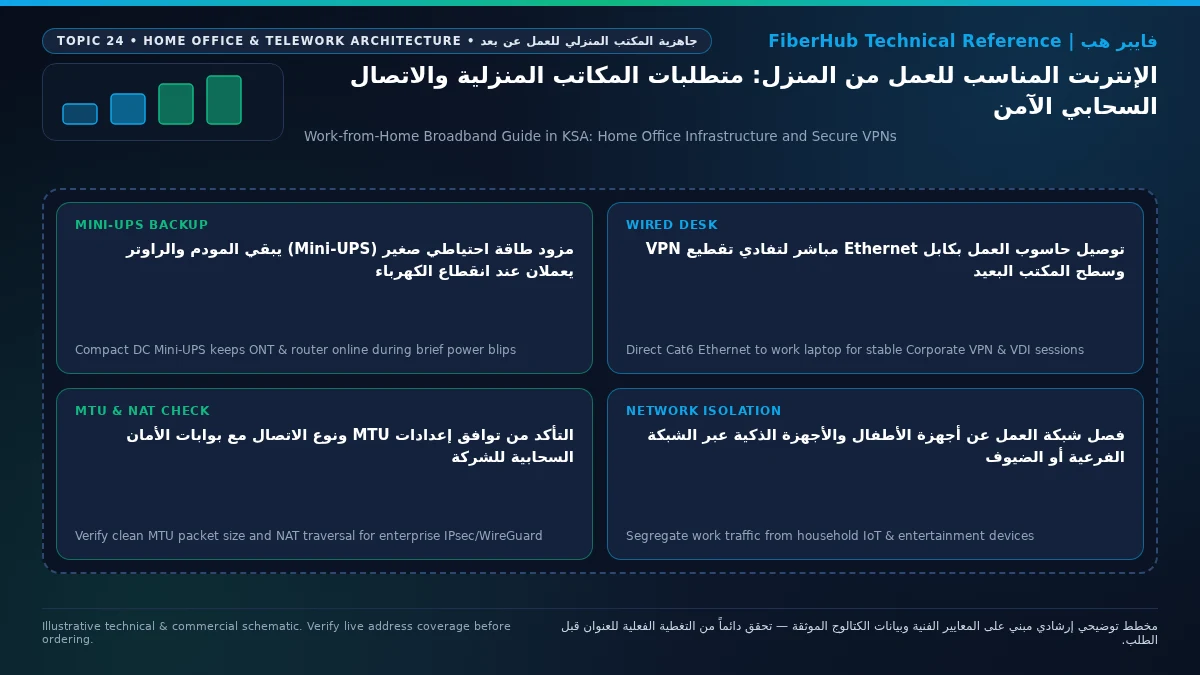
Choosing the right internet connection for remote office days requires prioritizing upstream capacity, sub-20ms latency stability, packet-size transparency for encrypted corporate tunnels, and power resilience rather than chasing headline download speeds alone. For professionals working from home in Saudi Arabia, the gold-standard foundation is a dedicated Fiber-to-the-Home (FTTH) line delivering at least 100 Mbps to 300 Mbps downstream and 50 Mbps to 100 Mbps upstream, wired directly to your work laptop via a Cat6 Ethernet cable, reinforced with Smart Queue Management (QoS / SQM) to protect Microsoft Teams and Zoom voice packets from household congestion, segregated onto an isolated work VLAN, and backed by a 12V DC Mini-UPS plus secondary 5G failover so neither brief grid flickers nor neighborhood cable cuts can drop an executive call or cloud VDI session.
As hybrid and full-time telework have become permanent operational pillars across Saudi Arabia's banking, energy, government, and technology sectors, many remote professionals encounter a perplexing reality after subscribing to a high-speed package from FiberHub's residential fiber catalog: a home connection that streams 4K cinema effortlessly at night suddenly freezes when connecting to a corporate IPsec or SSL VPN at 9:00 AM, suffers noticeable mouse and keystroke lag inside Citrix or Azure Virtual Desktop, or turns robotic the moment a family member starts a console game download. In this comprehensive home-office engineering guide, we break down the exact protocol mechanics, network segmentation rules, traffic-shaping configurations, and continuity hardware required to turn a residential broadband line into an enterprise-grade telework workstation.

Engineering a Telework-Grade Connection: Why Remote Office Traffic Differs from Streaming
Consumer entertainment traffic and enterprise remote-work traffic behave as polar opposites at the transport layer. When you watch a movie on a streaming platform, your television downloads sequential chunks of video several seconds ahead of playback into a local memory buffer; if latency spikes to 180 ms or packets arrive out of order, the buffer absorbs the hiccup invisibly. Corporate telework applications—interactive bi-directional video conferencing, live screen sharing, remote desktop rendering, and encrypted database queries—cannot pre-buffer the future. Their performance is governed by four strict engineering metrics:
- Sustained Upload Bandwidth (Upstream Headroom): Casual web browsing consumes roughly a 10:1 download-to-upload ratio. Remote work flips that dynamic. Simultaneously transmitting a
1080pwebcam feed, sharing an ultra-wide presentation screen on Microsoft Teams, syncing large PowerPoint or CAD repositories to OneDrive/SharePoint, and encapsulating every packet inside a corporate VPN tunnel places heavy continuous demand on your upload channel. If upstream bandwidth saturates, outgoing TCP acknowledgment packets (TCP ACKs) get stuck in the outbound queue, choking both upload and download speeds simultaneously. - Deterministic Latency and Sub-10ms Jitter: Real-Time Transport Protocol (
RTP) audio and video streams used by Zoom, Webex, and Teams require consistent inter-packet arrival times. While fiber optic Passive Optical Networks (GPON / XGS-PON) use deterministic Dynamic Bandwidth Allocation to keep jitter under2 msto4 ms, cellular wireless links subject to tower scheduling contention can exhibit20 msto60 msjitter spikes that cause frozen video frames and clipped syllables. - End-to-End Packet Size and NAT Continuity: Fiber connections typically terminate via clean
PPPoEorDHCPsessions with predictable packet headers. Conversely, cellular 5G connections operating behind Carrier-Grade NAT (CGNAT) and mobile tunneling protocols (GTP / DS-Lite) frequently alter packet fragmentation behavior and aggressively time out idleUDPsecurity associations. - Physical Layer Determinism (Wired
Cat6over Wi-Fi): Even a high-end router experiences momentary wireless airtime contention when neighboring networks or household devices transmit bursts. Connecting your corporate laptop to the router via a physicalCat6Ethernet cable and a Gigabit USB-C/Thunderbolt dock eliminates local radio retries completely.
Corporate VPN Stability: Solving IPsec, WireGuard, and SSL MTU Fragmentation on Fiber vs 5G
One of the most frequent and frustrating support tickets raised by remote employees in Saudi Arabia is the "Connected VPN Blackhole": your corporate VPN client (such as Cisco AnyConnect, Palo Alto GlobalProtect, FortiClient, Check Point, Zscaler, or WireGuard) authenticates successfully and displays a green connected padlock, yet internal intranet portals fail to load, Microsoft Outlook gets stuck on "Trying to connect to Exchange," and SSH or ERP sessions hang indefinitely whenever large data payloads are requested.
The root cause is almost always Maximum Transmission Unit (MTU) exhaustion and Path MTU Discovery (PMTUD) failure, governed by packet framing standards defined by the Internet Engineering Task Force (IETF):
- A standard Ethernet frame carries a maximum Layer-3 payload (
MTU) of1500 bytes. On residential fiber lines using Point-to-Point Protocol over Ethernet (PPPoE), thePPPoEheader consumes8 bytes, leaving an effective WANMTUof1492 bytes. - When your corporate VPN client activates, it wraps every IP packet inside cryptographic headers (
ESP,UDPencapsulation forNAT-T, orTLS/DTLSheaders), adding60 bytesto120 bytesof overhead per packet. - On a 5G Fixed Wireless Access (
5G FWA) router operating overCGNATorIPv6-to-IPv4carrier encapsulation, the cellular network's underlyingMTUis often already reduced to1420 bytesor1380 bytes. When your laptop attempts to send a full-sized packet with theDon't Fragment (DF)flag set through the VPN tunnel, the encrypted packet exceeds the carrier ceiling and is dropped. If strict corporate firewalls block the returningICMP Type 3 Code 4 (Fragmentation Needed)control message, your laptop never learns that it needs to shrink its packet size—resulting in small ping packets succeeding while actual work files freeze completely.
Step-by-Step Fixes for Corporate VPN Stalls and Disconnections:
- Enable TCP MSS Clamping and Lower Tunnel MTU (
1350–1360 Bytes): Log into your home router's WAN settings and enable TCP Maximum Segment Size (MSS) Clamping, or set your router/VPN adapterMTUto1360 bytes(resulting in a1320-byteTCP MSS). Shrinking the payload ceiling by 140 bytes ensures that even heavily encapsulatedIPsecorWireGuardpackets pass cleanly through both fiberPPPoEand 5GCGNATgateways without fragmentation drops. - Prevent UDP NAT Session Timeouts (
NAT-T Keep-Alive): Modern VPNs preferUDPtransport (such asUDP 4500for IPsec NAT-Traversal orUDP 443for DTLS) because tunnelingTCP-over-TCPcauses severe retransmission amplification. However, some home routers closeUDPstate-table entries after 30 seconds of silence. Enable IPsec Passthrough on your router, disable broken SIP ALG helpers, and ensure NAT Keep-Alive intervals are set to20 seconds.
Cloud VDI and Remote Desktop Sensitivity: Latency, Jitter, and Upload Demands for Citrix and RDP
In Saudi financial institutions, government ministries, healthcare networks, and energy enterprises, security policies increasingly prohibit storing corporate files on endpoint laptops. Instead, remote staff work inside Virtual Desktop Infrastructure (Cloud VDI) delivered via Citrix Virtual Apps and Desktops (HDX / EDT), VMware Horizon (Blast Extreme / PCoIP), or Microsoft Azure Virtual Desktop (RDP Shortpath).
Unlike local applications, a VDI session transmits every physical mouse movement and keystroke across your internet connection to a central data center and streams back compressed display frames in real time. Consequently, VDI user experience is governed by strict network thresholds:
- Keystroke and Cursor Echo Latency (
RTT < 25 ms): Over a domestic Saudi FTTH fiber connection routing to a Riyadh or Jeddah enterprise cloud region, round-trip latency typically measures between4 msand14 ms. At this speed, typing in a remote Excel sheet or moving a CAD cursor feels indistinguishable from a local PC. Once latency crosses60 msto80 ms—or if jitter fluctuates wildly between10 msand90 ms—users experience disorienting "rubber-banding" cursors and delayed character echo. - Protecting VDI Control Channels from Bufferbloat: Both Citrix
HDXAdaptive Transport and MicrosoftRDP Shortpathrely on continuous low-latencyUDPstreams. If a household device saturates your upload or download link without queue management, VDI display frames stall in the modem buffer, causing screen artifacts, audio desynchronization, and abrupt session freezes.
The engineering matrix below outlines the recommended broadband specifications across four distinct remote-work profiles in Saudi households:
| Remote Work Profile & Enterprise Workload | Dedicated Download Allocation | Dedicated Upload Allocation | Target Latency & Jitter Ceiling | Recommended Residential Access Tier |
|---|---|---|---|---|
| Standard Office Telework (Email, ERP Web, Audio Calls) | 50 Mbps |
15 Mbps |
RTT < 40 ms / Jitter < 15 ms |
Entry FTTH Fiber or strong 5G FWA |
| Executive Video Conferencing (1080p Teams/Zoom + Screen Share) | 100 Mbps |
30 Mbps to 50 Mbps |
RTT < 25 ms / Jitter < 8 ms |
FTTH Fiber with active QoS / SQM |
| Cloud VDI & Remote Workstation (Citrix HDX / Horizon / RDP) | 150 Mbps |
50 Mbps |
RTT < 20 ms / Jitter < 5 ms |
Wired Cat6 FTTH Fiber + MTU tuning |
| Software Engineering, Cloud CAD/BIM, or Dual-Teleworker Home | 300 Mbps to 500 Mbps+ |
100 Mbps to 150 Mbps+ |
RTT < 15 ms / Jitter < 3 ms |
High-tier FTTH Fiber + Isolated Work VLAN |
Separate indoor Wi-Fi bottlenecks from line capacity issues
If slow speeds or high ping persist over direct Ethernet, check whether fiber or a higher upload tier is available at your address.
Network Segmentation and QoS Traffic Shaping: Isolating Work Laptops and Prioritizing Teams & Zoom
Running a corporate laptop equipped with enterprise Endpoint Detection and Response (EDR) agents on the exact same flat home network as children's tablets, smart TVs, gaming consoles, and budget smart-home plugs creates both security and performance hazards. Transforming a family broadband line into a disciplined home-office network requires two router-level controls:
1. VLAN Segmentation and Work Subnet Isolation
Untrusted smart-home gadgets and heavily used family gaming devices generate constant local broadcast chatter (mDNS, UPnP, SSDP) and represent potential infection vectors on a shared Local Area Network (LAN). Using your router's network segmentation features:
- Assign the physical Ethernet port feeding your home office (or a dedicated work-only Wi-Fi SSID protected by
WPA3) to an isolated Work VLAN (IEEE 802.1Q) or enable AP/Client Isolation. - This Layer-2/Layer-3 boundary ensures that household devices cannot scan, ping, or attempt lateral connections toward your corporate laptop, while keeping your work traffic completely insulated from local broadcast storms.
2. Smart Queue Management (SQM) and DSCP Conferencing Prioritization
To guarantee that a 90-gigabyte PlayStation update or multiple 4K family streams never cause your voice to break up during a live Microsoft Teams, Zoom, or Webex presentation, configure active Queue Management on your router:
- Eliminate Bufferbloat with SQM (
CAKEorFQ_CoDel): Set your router's QoS upload and download bandwidth limiters to 90%–95% of your verified line speed. By taking control of the queue slightly below the ISP modem's physical bottleneck, modernFQ_CoDelandCAKEschedulers prevent large file transfers from monopolizing the line, keeping interactive latency flat under load. - Enforce Device and DSCP Class Priority: Place your work laptop's MAC address into the Real-Time / Highest Priority tier, and ensure your router honors Differentiated Services Code Point (
DSCP) markings standardized alongside ITU-T multimedia quality frameworks—specificallyEF (Expedited Forwarding, DSCP 46)for real-time voice andAF41 (DSCP 34)for interactive video conferencing.
Home Office Business Continuity: 12V DC Mini-UPS Power Backup and Dual-WAN Failover
Even the fastest fiber connection fails instantly if a two-second utility power brownout or a tripped air-conditioning circuit breaker cuts electricity to your fiber Optical Network Terminal (ONT) and router. While your corporate laptop stays powered on its internal battery, a rebooting fiber ONT and router take 3 to 5 full minutes to boot their operating systems, re-establish optical GPON ranging, authenticate PPPoE, and reconnect your corporate VPN—dropping you straight out of a critical board meeting.
To achieve true enterprise-grade continuity (99.99% uptime) in a Saudi home office, implement a two-layer resilience strategy:
- Inline
12V DC Mini-UPSfor the ONT and Router: Because passive optical fiber (FTTH) requires no electrical repeaters between the ISP central office and your home, the optical laser signal inside your wall fiber remains live during a neighborhood power outage! Rather than using a noisy desktop AC inverter UPS, connect a compact12V DC Mini-UPS(typically rated at10,000 mAhto20,000 mAhwith dual12V/2ADC outputs) directly inline with your fiber ONT and primary router power cords. When grid power flickers or fails, the DC battery sustains both devices with0 mstransfer time (zero reboot) for 4 to 8 hours, keeping your Wi-Fi and wired Ethernet completely uninterrupted. - Automated Dual-WAN Failover (Fiber WAN 1 + 5G/LTE WAN 2): Configure a Dual-WAN router with your primary FTTH fiber line on
WAN 1and a secondary 5G router or USB cellular modem onWAN 2in Automatic Failover (Watchdog Ping) mode. If an external construction crew accidentally severs a street fiber cable, the router detects packet loss within seconds and transparently fails over all active traffic to the cellular backup link.
Before setting up or upgrading your home office, verify fiber infrastructure readiness at your building on the interactive FiberHub coverage map, compare upstream and downstream tiers across providers using the side-by-side plan comparison tool, or select a telework-ready package directly on the residential fiber plans page aligned with telecommunications reliability standards overseen by the Communications, Space and Technology Commission (CST).
Frequently Asked Questions About Home Office Broadband and Telework Connectivity
Does your current plan support your device count and upload needs?
Compare download/upload ratios and Wi-Fi 6 or FTTR hardware options across plans available at your address.
Why does my corporate VPN connect successfully but freeze when loading internal web apps or Outlook?
When a corporate VPN connects cleanly and passes small ping tests or text chat messages but hangs indefinitely when opening Microsoft Outlook, internal web dashboards, or shared network drives, the culprit is almost certainly Packet Fragmentation (MTU / MSS mismatch). Encrypted VPN headers (IPsec, WireGuard, or SSL/TLS) add 60 to 120 bytes to every packet. When combined with fiber PPPoE headers or 5G CGNAT carrier tunneling, large packets exceed the path MTU ceiling and get silently dropped. Lowering the MTU on your VPN interface or router WAN port to 1360 bytes (or enabling TCP MSS Clamping) resolves this freeze immediately.
How much upload speed do I genuinely need when working from home in a family household?
For a single remote worker running 1080p video calls on Microsoft Teams or Zoom while sharing a high-resolution screen and syncing documents over a corporate VPN, a dedicated 25 Mbps to 30 Mbps of stable upload bandwidth is sufficient. However, in a family household where two adults work remotely or children attend virtual classes while smart-home cameras upload cloud video clips and phones run automated cloud backups, you should select a fiber plan offering at least 50 Mbps to 100 Mbps upload speed so upstream congestion never starves real-time audio and video streams.
How can I stop console game downloads and 4K streaming from ruining my Microsoft Teams calls?
Simply buying a higher download speed tier does not prevent latency spikes when a gaming console (PlayStation, Xbox, or Steam) opens dozens of parallel TCP streams and floods your router's memory buffers—a phenomenon known as Bufferbloat. To permanently protect your calls, enable Quality of Service (QoS) or Smart Queue Management (SQM) in your router settings, cap the shaper at 90%–95% of your real line speed, and assign your work laptop's MAC address to the Highest / Real-Time Priority queue. Your router will immediately schedule voice and video frames ahead of bulk game downloads, keeping call latency rock-steady under full household load.
How long can a 12V DC mini-UPS keep my fiber ONT and router online during a power outage?
A typical residential fiber ONT consumes roughly 6 to 10 watts (12V DC), and a standard home router consumes 10 to 15 watts. Because an inline 12V DC Mini-UPS feeds direct current straight from its internal lithium-ion cells to your networking gear without wasteful DC-to-AC-to-DC inverter conversion losses, a compact 38 Wh to 74 Wh (10,000 mAh to 20,000 mAh) unit easily powers both your fiber ONT and router for 4 to 8 continuous hours with zero switchover delay (0 ms), ensuring your internet stays live throughout power flickers or extended outages.
Completed tuning and ready for a more stable fiber line?
Check fiber availability at your address and compare low-latency plans for gaming, telework, and multi-floor homes.
Editorial Transparency & Neutrality Notice:
This guide is provided for comparison and decision support. It does not constitute final address coverage confirmation, binding operator pricing, or regulatory accreditation. Always verify final plan terms and box readiness before completing your subscription request.