- The Three-Layer Family Safety Architecture: Why a Single Setting Is Never Enough
- Reference Comparison: Best Free and Customizable Family-Safe DNS Servers for Saudi Routers
- Step-by-Step Guide: Configuring Parental Controls and Bedtime Schedules on Your Fiber Router
- Closing the Three Loopholes Kids Use to Bypass Router Parental Controls
- Age-Appropriate Policy Matrix and Gaming Console Safety (PlayStation, Xbox, and Roblox)
- Frequently Asked Questions About Router Parental Controls and Family Safety
- Does using a family-safe DNS server on my fiber router slow down downloads or increase gaming ping?
- How do I stop my child from switching to 4G/5G mobile data when home Wi-Fi turns off at bedtime?
- Can I automatically force YouTube Restricted Mode and Google SafeSearch across all home devices?
- What if my ISP's basic fiber ONT router has limited parental control scheduling options?
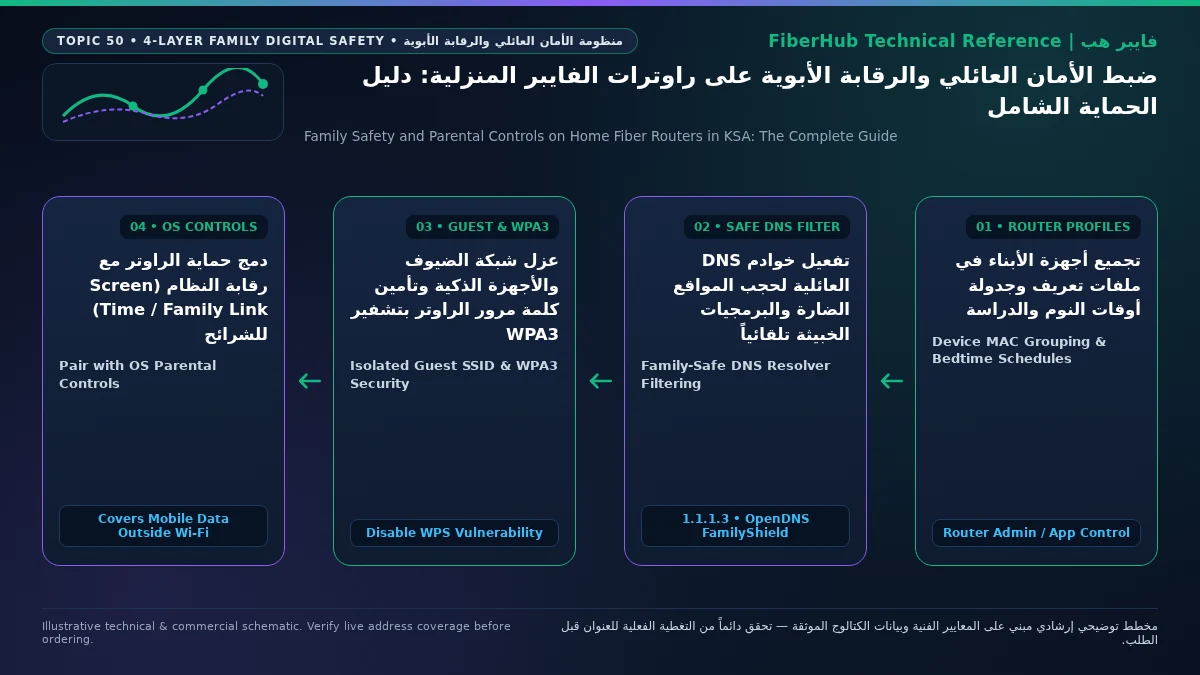
Configuring reliable parental controls and family safety on a home fiber network requires a three-layer defense-in-depth architecture rather than relying on a single router toggle: first, configure family-safe DNS resolvers directly inside your fiber router's DHCP settings (such as Cloudflare for Families at 1.1.1.3 or CleanBrowsing Family Filter at 185.228.168.168) to automatically block adult domains, phishing links, and enforce Strict SafeSearch across every Wi-Fi device in the house; second, set up router-level MAC or SSID time schedules to cut off internet access on children's consoles, tablets, and smart TVs at bedtime on Saudi school nights (Sunday through Thursday evenings); and third, pair your router rules with operating-system supervision tools (Apple Screen Time, Google Family Link, and PlayStation/Xbox family accounts) so older children cannot bypass home Wi-Fi restrictions by switching to 5G cellular data, randomizing their device MAC address, or enabling encrypted browser DNS.
In modern Saudi households connected to high-speed Fiber-to-the-Home (FTTH) broadband, children interact daily with smart TVs, gaming consoles, tablets, and laptops that cannot be monitored over the shoulder 24 hours a day. While Saudi Arabia enforces baseline national filtering against harmful and illegal websites under the regulatory oversight of the Communications, Space and Technology Commission (CST), open search engines, short-form video apps, and multiplayer gaming chat rooms require finer household controls tailored to your children's ages. This comprehensive guide walks parents step by step through configuring Huawei, Nokia, and Mesh fiber routers, selecting low-latency family DNS resolvers, closing common teenager bypass loopholes, and securing your home wireless perimeter on any of the plans featured on our Saudi fiber broadband comparison hub.
The Three-Layer Family Safety Architecture: Why a Single Setting Is Never Enough
Many parents assume that typing a few website names into a router's "URL Blacklist" box is sufficient to protect their children online. In practice, modern web infrastructure makes manual URL blacklisting obsolete: millions of new domains appear weekly, mobile apps communicate via dynamic cloud IP addresses rather than browser URLs, and encrypted HTTPS traffic prevents basic home routers from inspecting individual web pages.

To build a resilient, tamper-resistant safety net across your home broadband connection, combine three distinct control planes:
- Network-Wide DNS Content Filtering (The First Line of Defense): Every time a phone, tablet, smart TV, or console attempts to open a website or app server, it must first query a Domain Name System (DNS) server to translate the domain name into a numeric IP address. By assigning a family-safe DNS resolver inside your fiber router, requests for adult pornography, gambling, malware, or phishing domains are blocked instantly at the network gateway—and search engines (Google, Bing) plus YouTube can be forced into Strict SafeSearch mode automatically across every connected device.
- Router Access Scheduling and Wi-Fi Segmentation (The Time Gatekeeper): Your fiber ONT or Mesh Wi-Fi controller governs when specific devices are allowed to pass traffic to the internet. By grouping children's devices into scheduled profiles—or assigning them to a dedicated
Kids-Wi-FiSSID that turns off automatically at 9:30 PM on school nights—you protect sleep hygiene without interrupting parents' laptops, smart security cameras, or home automation hubs. - OS-Level Screen Time and Cellular Governance (The Device Enforcer): Because a home router cannot see inside encrypted apps to distinguish between an educational YouTube video and age-inappropriate content—and cannot control a smartphone once a child turns off Wi-Fi and switches to a 4G/5G SIM card—Apple Screen Time, Google Family Link, and console parental controls enforce per-app daily time quotas, age ratings for app store downloads, and bedtime screen locks directly on the device hardware.
Reference Comparison: Best Free and Customizable Family-Safe DNS Servers for Saudi Routers
Replacing the default DNS addresses inside your fiber router with a reputable family DNS resolver is the single highest-impact protection you can deploy in under five minutes. Because DNS filtering operates at the network router level, it automatically protects devices that do not support third-party parental control apps, including Smart TVs, PlayStation 5, Xbox Series X, and Nintendo Switch consoles.
Furthermore, global DNS providers such as Cloudflare and Cisco OpenDNS operate local edge Points of Presence (PoPs) inside Saudi Arabia (Riyadh, Jeddah, and Dammam) and the Gulf region, delivering sub-10 ms query resolution with zero impact on download speeds or multiplayer gaming latency. Compare the leading family DNS resolvers below:
| Family DNS Service | Primary IPv4 Address | Secondary IPv4 Address | What Content Does It Block? | Best Use Case & Trade-offs for Saudi Families |
|---|---|---|---|---|
| Cloudflare for Families (Malware + Adult) | 1.1.1.3 |
1.0.0.3 |
Adult/pornographic domains, phishing sites, and known malware hosts | Fastest response time in KSA (ultra-low ping for gamers), 100% free, zero setup account required; does not force YouTube Restricted Mode |
| CleanBrowsing (Family Filter) | 185.228.168.168 |
185.228.169.168 |
Adult content, VPNs/proxies, mixed-content sites, and malicious domains | Best for younger children; automatically forces Strict SafeSearch on Google/Bing and Restricted Mode on YouTube for free |
| Cisco OpenDNS FamilyShield | 208.67.222.123 |
208.67.220.123 |
Adult websites, explicit tasteless content, and phishing/malware | Rock-solid enterprise reliability from Cisco; works immediately out of the box or pairs with a free dashboard for custom category blocks |
| AdGuard Family Protection DNS | 94.140.14.15 |
94.140.15.16 |
Adult websites, intrusive pop-up ads, malicious trackers, plus SafeSearch | Ideal for blocking deceptive in-game mobile ads and pop-ups alongside adult content filtering and SafeSearch enforcement |
| NextDNS (Custom Profile Account) | Assigned per user account | Assigned per user account | Granular per-app blocks (TikTok, Roblox, Discord, Snapchat, YouTube) | Best pro-level control; free up to 300,000 queries/month, lets parents block specific social or gaming apps during study hours |
Critical IPv6 Configuration Note: Most Saudi FTTH connections from STC, Mobily, and Salam (which you can compare on our verified home broadband plans directory) support IPv6 dual-stack connectivity by default. When configuring family DNS on your router, you must also enter the corresponding IPv6 DNS addresses (for example, 2606:4700:4700::1113 and 2606:4700:4700::1003 for Cloudflare Family, or 2a0d:2a00:1:: and 2a0d:2a00:2:: for CleanBrowsing) or disable un-filtered IPv6 DNS announcements; otherwise, modern smartphones will prefer IPv6 DNS and bypass your IPv4 filter entirely.
Step-by-Step Guide: Configuring Parental Controls and Bedtime Schedules on Your Fiber Router
Standard fiber gateways deployed across Saudi Arabia (including Huawei OptiXstar, Nokia Beacon, and ZTE ONTs) as well as whole-home Mesh Wi-Fi systems (TP-Link Deco, Asus AiProtection, eero, and Huawei Mesh) include built-in Parental Control engines. Follow this structured workflow to set up reliable schedules and filtering:
- Log In to Your Router Admin Portal or Mesh App: Open a web browser on a device connected to your home network and enter
192.168.100.1(Huawei gateways) or192.168.1.1(Nokia/ZTE gateways), then sign in with the administrator password printed on the router label. If you use a Mesh Wi-Fi system, open its companion smartphone app. - Label Every Family Device Clearly and Reserve Static Local IPs: Navigate to Connected Devices / DHCP Client List. Rename cryptic hostnames (such as
wlan-client-42oriPhone-2) to clear labels likeFaisal-iPad,Sara-Laptop, andLivingRoom-PS5, and bind each device to a fixed local IP address via DHCP Static IP Reservation so logs and rules remain consistent. - Create School-Night vs Weekend Bedtime Templates:
- Open the Security / Parental Controls tab and create a new profile template named
Kids School Schedule. - Select the MAC addresses of your children's tablets, laptops, gaming consoles, and bedroom smart TVs.
- Configure Saudi School Nights (Sunday evening through Thursday): Allow internet access from 3:00 PM until 9:00 PM or 9:30 PM, blocking all internet traffic overnight and during early morning hours.
- Configure Weekend Evenings (Thursday night and Friday): Extend allowed internet hours until 11:00 PM or 11:30 PM for family movie nights and gaming.
- Open the Security / Parental Controls tab and create a new profile template named
- Apply Family DNS at the Router DHCP/WAN Layer: Navigate to LAN -> DHCP Server Settings (and IPv6 DHCP Settings), enter your chosen Primary and Secondary Family DNS servers (such as
1.1.1.3/1.0.0.3or185.228.168.168/185.228.169.168), save your configuration, and toggle Wi-Fi off and on across household devices so they immediately lease the filtered DNS settings.
Separate indoor Wi-Fi bottlenecks from line capacity issues
If slow speeds or high ping persist over direct Ethernet, check whether fiber or a higher upload tier is available at your address.
Closing the Three Loopholes Kids Use to Bypass Router Parental Controls
Tech-savvy children and teenagers quickly discover simple workarounds that defeat basic router rules. Closing these three technical loopholes ensures your family safety rules remain intact:
- 1. The Randomized MAC Address Loophole ("Private Wi-Fi Address"): Router time schedules identify devices by their hardware MAC Address. However, Apple iOS/iPadOS, Android, and Windows 11 enable a privacy feature called Private Wi-Fi Address (Randomized MAC) by default. If a child toggles "Private Wi-Fi Address" off and back on—or selects "Rotate Wi-Fi Address"—their phone presents a brand-new MAC address to the router, immediately escaping the scheduled bedtime block! To fix this permanently, disable Private Wi-Fi Address for your home SSID on your child's device, or better yet, use SSID Segmentation: create a dedicated virtual wireless network on your router named
Home-Kids(keeping the mainHome-ParentsWi-Fi password strictly private) and configure the router's WLAN Schedule to turn off the entireHome-Kidsradio at bedtime, or apply your parental control rule to every client joiningHome-Kidsregardless of its MAC address. - 2. The Encrypted Browser DNS (DoH) and Free VPN App Loophole: Modern web browsers (Chrome, Edge, Firefox, Brave) include a built-in Secure DNS (DNS-over-HTTPS / DoH) setting that sends DNS lookups over encrypted port 443 directly to unfiltered public resolvers, completely ignoring your router's DHCP DNS settings. To close this bypass, use a family DNS resolver like CleanBrowsing Family Filter or NextDNS, which actively blocks known public DoH endpoints, web proxies, and free VPN domains. Additionally, disable custom Secure DNS inside your child's browser settings or lock it to the same family filter URL, and require parental approval for all App Store and Google Play installations so VPN apps cannot be downloaded.
- 3. The Physical Router Label, Reset Pinhole, and WPS Button Loophole: If your router sits in an accessible hallway with its default admin password printed on the bottom sticker and its WPS (Wi-Fi Protected Setup) physical push-button active, a teenager can log into
192.168.100.1to delete their bedtime rule or press the WPS button to join the unrestricted main network without knowing the Wi-Fi password. Following Wi-Fi Alliance security best practices, immediately change the router's administrator login password from the factory default, disable WPS completely inside the WLAN security menu, enforce WPA2-PSK (AES) or WPA3-Personal encryption, and enable an isolated Guest Wi-Fi network for visiting friends so guests remain protected by your family DNS filter without gaining access to local family files or smart TVs.
Age-Appropriate Policy Matrix and Gaming Console Safety (PlayStation, Xbox, and Roblox)
Online safety extends beyond web browsers to multiplayer voice chat rooms, social gaming platforms, and accidental in-game microtransactions. To balance healthy digital autonomy with age-appropriate boundaries across a Saudi household, apply this tiered configuration matrix:
| Household Age Group / Zone | Router & DNS Filter Policy | Recommended Saudi Schedule | Mandatory Console & Device OS Controls |
|---|---|---|---|
| Early Childhood (Ages 4–8) | Connect only to Home-Kids SSID with CleanBrowsing Family Filter + YouTube Kids whitelist |
Max 1.5–2 hours/day; automatic Wi-Fi cutoff at 8:00 PM | Disable all voice/text chat in Roblox; block browser and app store installations completely |
| Pre-Teens & Middle School (Ages 9–12) | CleanBrowsing or NextDNS with Strict SafeSearch and social media time blocks | 3:00 PM to 9:00 PM Sun–Thu school nights; 10:30 PM on Thu–Fri weekends | Restrict PlayStation/Xbox party chat to "Approved Friends Only" and set wallet spending limit to 0 SAR |
| Teenagers & High School (Ages 13–17) | Cloudflare for Families (1.1.1.3) to block adult/phishing domains while allowing academic research |
Open for study until 10:30 PM Sun–Thu; 12:00 AM on weekends | Pair with Apple Screen Time or Google Family Link Downtime to prevent late-night 5G SIM browsing |
| Shared Living Room TVs & Guest Wi-Fi | Bind Smart TVs to Family DNS; enable Client Isolation (AP Isolation) on Guest SSID | Active during waking family hours; scheduled cutoff for Guest SSID | Lock Netflix, Shahid, and YouTube adult profiles behind a 4-digit parental PIN |
To prevent unauthorized Mada or credit card charges on gaming consoles, always configure Family Management inside PlayStation Network (PS5/PS4) and Microsoft Xbox Family Settings: create a dedicated child sub-account linked to the parent's organizer account, set the Monthly Spending Limit to 0 SAR (requiring parent password approval for every purchase), remove stored payment cards from the child's console profile, and set age-rating ceilings (such as PEGI 7 or PEGI 12) so mature titles cannot launch without explicit parental consent.
If you are evaluating a new home connection or upgrading to a provider offering advanced Wi-Fi 6 gateways and Mesh units, check available infrastructure at your address with our Saudi fiber and 5G coverage tool and compare ISP equipment side by side on the broadband plan comparison page.
Frequently Asked Questions About Router Parental Controls and Family Safety
Does using a family-safe DNS server on my fiber router slow down downloads or increase gaming ping?
No. A DNS server only translates a domain name (such as playstation.com or youtube.com) into its IP address during the first few milliseconds when a connection is initiated; actual video streams, game downloads, and real-time multiplayer packets flow directly between your router and the content server without passing through the DNS resolver. Because providers like Cloudflare for Families (1.1.1.3) and OpenDNS operate low-latency edge servers inside Saudi Arabia, web pages resolve instantaneously while malicious and adult domains are blocked at the source.
Does your current plan support your device count and upload needs?
Compare download/upload ratios and Wi-Fi 6 or FTTR hardware options across plans available at your address.
How do I stop my child from switching to 4G/5G mobile data when home Wi-Fi turns off at bedtime?
A home fiber router only controls traffic passing through your local Wi-Fi and Ethernet ports; it cannot disable a cellular SIM card inside a smartphone. To close the mobile data bypass, pair your router schedule with native OS parental controls: on iPhones and iPads, enable Apple Screen Time managed from the parent's Apple ID, configure scheduled Downtime, lock Screen Time with a 4-digit passcode, and set Cellular Data Changes to "Don't Allow." On Android phones, install Google Family Link, which locks the entire phone screen at bedtime whether the device is on Wi-Fi or 5G mobile data.
Can I automatically force YouTube Restricted Mode and Google SafeSearch across all home devices?
Yes. The most reliable way to enforce Strict SafeSearch on Google and Bing alongside Restricted Mode on YouTube across every browser, tablet, and Smart TV on your network is to configure CleanBrowsing Family Filter (185.228.168.168 and 185.228.169.168) or NextDNS (with the Force SafeSearch and Force YouTube Restricted Mode toggles enabled) inside your router's DHCP DNS settings. These resolvers use DNS CNAME rewriting at the network layer to route all search and video queries through forcesafesearch.google.com and restrict.youtube.com automatically.
What if my ISP's basic fiber ONT router has limited parental control scheduling options?
Some basic ISP-supplied Optical Network Terminals only support a small number of MAC filter entries or lack per-day school-night vs weekend schedules. You have two clean solutions without changing your fiber provider: first, create a free NextDNS account and link its DNS addresses to your router to gain cloud-based time schedules for specific apps (like TikTok, Roblox, YouTube, and Discord); or second, connect a modern Mesh Wi-Fi system (such as TP-Link Deco, Asus ZenWiFi, or eero) to your ONT's Gigabit LAN port and manage all family profiles, bedtimes, and content filters from an intuitive smartphone app.
- Official References and Security Standards: Online child protection and safe internet browsing guidelines from the Communications, Space and Technology Commission (CST), DNS resolver architecture documentation from Cloudflare 1.1.1.1 for Families, and wireless encryption and WPS security standards from the Wi-Fi Alliance.
Completed tuning and ready for a more stable fiber line?
Check fiber availability at your address and compare low-latency plans for gaming, telework, and multi-floor homes.
Editorial Transparency & Neutrality Notice:
This guide is provided for comparison and decision support. It does not constitute final address coverage confirmation, binding operator pricing, or regulatory accreditation. Always verify final plan terms and box readiness before completing your subscription request.